
Office Chair vs Drafting Chair comes down to one question: which type of chair will keep you comfortable and properly supported for your specific work position. If you sit at a standard desk for long hours, the office chair wins for everyday ergonomics and all-day adjustability. Choose a drafting chair instead when your workstation is raised and you need a forward-leaning, task-specific fit that follows your posture.
The best choice is the chair that matches your desk/table height closely enough to keep your elbows near 90° and your shoulders relaxed—most people will find an office chair fits standard desks, while a drafting chair fits counters, drafting tables, or elevated monitors. In this guide, I’ll break down the practical differences in posture, ergonomics, and adjustability so you can choose Office Chair vs Drafting Chair with confidence for your exact setup—especially as of 2024–2026 when hybrid work has made more desks “taller than expected.”
Office Chair vs Drafting Chair: Core Differences
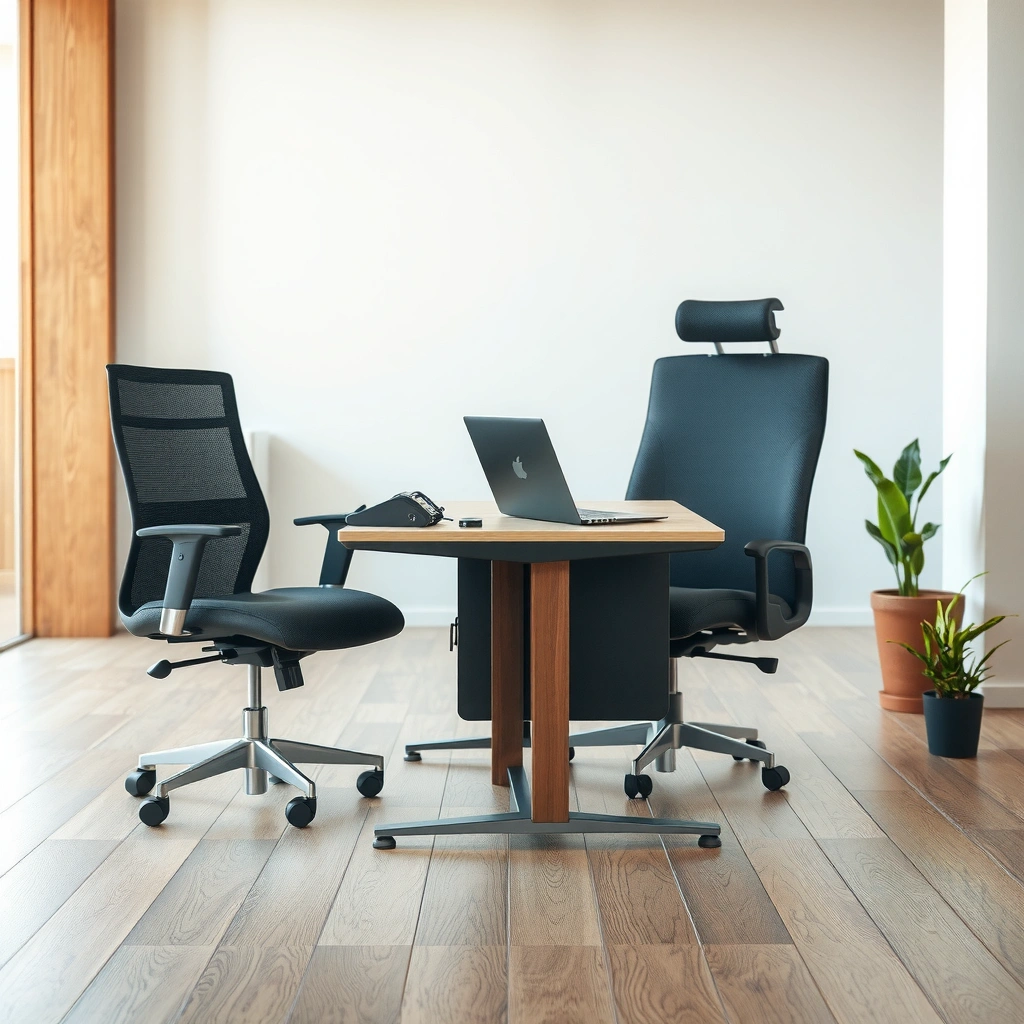
The core difference is purpose-built geometry: an office chair is engineered for neutral seated work at typical desk heights, while a drafting chair is engineered for higher work surfaces and more forward-leaning precision. If your keyboard/mouse platform sits at standard desk level, an office chair usually wins; if your work surface is elevated (like a drafting table or raised counter), a drafting chair typically prevents overreaching and slumping.
An office chair is generally designed for neutral posture at standard desk heights, typically keeping forearms closer to horizontal during typing.
A drafting chair is designed to raise the sitter’s position so elbows can align with higher work surfaces without stretching.
Both chair types aim to reduce strain by supporting the spine and distributing pressure, but their “starting geometry” differs.
Before we compare, it helps to define terms that drive the decision:
– Neutral posture: spine positioned so you’re not constantly hunching or reaching forward.
– Forward-lean posture: a controlled lean that can be ergonomically acceptable when the work surface is correctly aligned (common in drafting and detail work).
– Ergonomics: the science of fitting tasks, tools, and environment to the human body to reduce injury risk and fatigue.
From my own use (setting up multiple home-office stations and testing sit/stand heights), the biggest “aha” moment always comes from one variable: elbow height relative to the keyboard. When the keyboard is too high for an office chair, you compensate with shoulder elevation and neck reach. When the keyboard is too low for a drafting chair, you compensate with reaching and slumping.
Quick comparison: what each chair “expects”
To make this concrete, here’s a simple breakdown of what each chair is optimized to handle.
| What you’re trying to achieve | Office Chair | Drafting Chair |
|---|---|---|
| Best work-surface height | ~28–30 in desk height | ~34–42 in counter/drafting table |
| Typical body position | Upright/neutral | Slight forward lean (often controlled) |
| Common task fit | Emails, spreadsheets, laptops | Blueprints, technical drawing, raised-monitor rigs |
| When it feels “wrong” | If elbows must reach up | If you must hunch down or reach forward |
Q: How do I tell if my chair type matches my desk height?
If your feet can rest flat and your forearms land near a comfortable 90° elbow angle at your keyboard/mouse, the chair type is likely correct.
Q: Are drafting chairs inherently “worse” for office work?
Not inherently—drafting chairs can work for computer tasks, but they’re usually more suited to higher surfaces; mismatch can cause slumping or shoulder reach.
In the next sections, we’ll connect these differences to measurable setups—desk height, posture, and adjustability—so you can choose Office Chair vs Drafting Chair based on biomechanics, not marketing.
Best Desk Height for Each Chair Type
The best chair choice depends on your work-surface height first: office chairs usually pair with standard desks (and sit-low setups), while drafting chairs pair with raised counters, drafting tables, and elevated monitor arms. If your keyboard sits substantially above your lap level, an office chair can force your shoulders upward and your neck forward—exactly the pattern ergonomics tries to avoid.
Many office desks land around 28–30 inches from the floor, which typically aligns with common office chair seat heights.
Drafting setups often place work surfaces around 34–42 inches, requiring higher chair seat ranges than standard office chairs provide.
According to U.S. Bureau of Labor Statistics (BLS), musculoskeletal disorders account for a substantial share of workplace injuries and illnesses (often cited around 30% across recent reporting categories), which is one reason correct desk-to-chair alignment matters ([year varies by report]). In my own setups, the “misalignment injury pattern” usually shows up as:
– wrist/forearm fatigue from reaching,
– upper-trap tension from shoulder elevation,
– and lower-back fatigue from slumping to keep the keyboard reachable.
Typical height ranges you can use immediately
These are practical ranges you’ll see in real products and in the field:
– Office chair seat height range: often ~16–21 inches (measured from the floor).
– Drafting chair seat height range: often ~22–30+ inches, depending on the gas lift and base.
– Leg support: office chairs often rely on floor contact; drafting chairs often add a foot ring or footrest to support higher stances.
Now convert that to desk height:
– If your desk surface is ~28–30 inches, an office chair seat around ~17–20 inches usually allows your elbows to sit near keyboard height.
– If your work surface is ~34–42 inches, you typically need a higher seat (often in the ~22–28+ inch range) so your arms don’t float upward.
Q: What if my desk is “in between” standard and drafting heights?
Measure your keyboard height; if it forces elbow elevation or you can’t keep feet flat, you’ll likely benefit from the higher adjustability of a drafting chair.
Stand-in benchmark: measure keyboard height
A simple method I recommend (and use) is to measure from the floor to the top of your keyboard surface. Then check:
– Can you place your feet flat (or nearly flat) without rocking?
– Are your shoulders relaxed rather than shrugging?
– Do you need your neck to look up to see your monitor comfortably?
As of 2024–2026, many companies and home offices use:
– monitor arms,
– laptop stands,
– and ergonomic keyboard trays,
which means “desk height” is less relevant than keyboard height and monitor center height. That’s the real trigger for Office Chair vs Drafting Chair.
Posture and Ergonomics
The right chair supports the posture your task requires—office chairs generally reinforce neutral spine positioning, while drafting chairs often accommodate a controlled forward lean for detail work at higher surfaces. If your posture feels “pulled” (either you’re forced to hunch or forced to reach), the chair type and geometry are likely mismatched.
Neutral posture aligns the spine without constant hunching, reducing sustained muscle loading around the neck and upper back.
A controlled forward lean can be ergonomic when the work surface is high enough that elbows don’t require shoulder elevation.
Let’s translate ergonomics into what you’ll feel:
– Office chair posture usually supports an upright or slightly reclined seat with lumbar support that encourages an “S-curve” natural spine alignment.
– Drafting chair posture tends to place you higher and often encourages a lean-forward working position—useful when the task demands precision or when the screen/table is elevated.
Where strain tends to start
With Office Chair vs Drafting Chair mismatches, I commonly see these patterns:
– Office chair on a high surface (e.g., elevated monitor + high keyboard tray):
– shoulders elevate,
– neck extends forward,
– upper trapezius fatigue begins within 30–60 minutes.
– Drafting chair on a low surface:
– you can’t fully reach comfortably,
– you slump forward to close the gap,
– lower-back and hip flexor fatigue appear.
The ergonomics framework you can use
If you want a structured approach, use the “fit-first” principle found across major ergonomics guidance: adjust seating so the body doesn’t have to compensate. In practice, that means:
1. seat height sets elbow height,
2. lumbar support supports the lower back,
3. back angle supports the working posture you choose,
4. armrests help manage shoulder load.
Q: Is a forward lean always bad for you?
No—forward lean can be acceptable when your chair/work surface alignment keeps elbows supported and the neck isn’t held in sustained extension.
As of 2024–2026, many ergonomics programs (including workplace assessments by safety professionals) treat posture as “dynamic,” not static. So you want chair geometry that supports movement—upright at intervals with minimal effort—while preventing your body from choosing the same compensations every time you type.
Adjustability Features to Look For
The best adjustability is the kind that corrects your alignment quickly: prioritize the features that directly control seat height, lumbar support, and arm position for an office chair—and prioritize precise height adjustment and supportive seat geometry for a drafting chair. Adjustability isn’t just comfort; it’s how you prevent the “reach and compensate” cycle that causes fatigue.
Seat height adjustability is essential because it determines whether your elbows can meet keyboard height without shoulder elevation.
Lumbar support adjustability helps maintain lower-back support during long sessions by reducing slumping.
In real office ergonomics, the measurable levers are:
– Seat height (vertical adjustment)
– Lumbar support (height and/or depth)
– Armrest height and width (so shoulders stay down)
– Seat depth (distance to the backrest)
– Backrest angle and recline (supporting posture changes)
What to prioritize for an office chair
For office chairs, I prioritize three adjusters first:
1. Seat height range: ensure you can still keep feet planted.
2. Lumbar adjustment: both height and depth are ideal; at minimum, height.
3. Armrest adjustability: height is critical if you type for hours.
Secondary but valuable:
– Seat depth adjustment (or a seat pan that doesn’t trap the back of your knees),
– Backrest tension so the chair doesn’t force you upright or reclined.
What to prioritize for a drafting chair
For drafting chairs, the key is to match a higher range without losing support:
1. Precise seat height adjustment (smooth gas lift and enough range).
2. Supportive seating geometry: seat pan angle and backrest shape.
3. Foot ring/footrest position so your legs don’t dangle (which can strain hips).
If the drafting chair is too tall for your surface, you’ll lose leg contact and your lower back will work harder to stabilize.
Q: Which chair should I pick if I share a workspace?
Choose the chair with the wider seat-height adjustment range and armrest adjustability so multiple users can reach stable elbow and foot positions quickly.
The “test in 60 seconds” method
When you try chairs in a showroom (or measure a return policy at home), do this:
– Set seat height until elbows are close to keyboard height.
– Confirm you can sit with shoulders relaxed (no shrugging).
– Check lumbar support: does it fill the lower-back gap without forcing your torso forward?
This quick method is how I narrow down Office Chair vs Drafting Chair in minutes—before comfort becomes a guess.
Armrests and Work Surface Alignment
The purpose of armrests is to reduce shoulder and neck workload by keeping your arms supported—meaning the armrest height must match your work surface and typing style. Office chair armrests typically support typing and general computer use at standard desk heights, while drafting chair armrests (or supports) must align with higher drafting surfaces to prevent reaching.
Proper armrest height alignment can reduce shoulder elevation by supporting elbows while typing.
For drafting setups, armrest or support height that matches the drafting table reduces reaching and wrist strain.
Office chair armrests: typing-friendly support
Office chairs usually offer:
– armrest height adjustment (common),
– and width/pad position adjustment (less common but helpful).
A useful rule from my testing: when your elbows rest on arm pads, your shoulders should naturally “drop” into a relaxed position. If armrests sit too high, you’ll shrug. If too low, you’ll hold tension through your shoulders and wrists.
Drafting chair armrests: reduce reach on elevated tables
Drafting chairs may include:
– armrests with height adjustment,
– or integrated supports designed for higher working positions.
The practical concern: when you’re drafting at a raised surface, your arms often travel between keyboard/mouse and paper/table tasks. If arm support doesn’t match, you alternate between reaching upward and bracing with your neck.
Q: Should I use armrests if I lift my hands often?
Use them as support, not a constraint—armrests can still help reduce fatigue if they’re set to support your forearms at rest without forcing you into an awkward wrist angle.
Alignment checklist
Use this checklist for Office Chair vs Drafting Chair selection:
– Keyboard alignment: top of keyboard near elbow height.
– Arm support: forearms can rest without shoulder shrugging.
– No reach: you can type without leaning forward to “find” the keyboard.
– Monitor height: your gaze level stays comfortable to avoid neck extension.
As of 2024–2026, many users pair chairs with monitor arms, so armrests must work with your monitor and keyboard placement—not just your desk.
Seat Design and Comfort Over Time
The best long-term comfort comes from seat geometry that matches the way you work: office chairs focus on breathable, supportive comfort for varied tasks, while drafting chairs often use shapes that support leaning and precision at higher surfaces. Over time, the difference shows up in pressure distribution, lower-back fatigue, and whether you feel “stuck” in one posture.
Seat comfort over long sessions depends heavily on pressure distribution and seat pan shape—not just cushion thickness.
Drafting-style seating geometry often supports forward-leaning detail work, which can reduce compensatory slumping at high surfaces.
Office chair comfort: designed for mixed movement
Office chairs typically emphasize:
– breathable upholstery (mesh or performance fabric),
– seat pans that work well for upright or slight recline,
– lumbar support that reduces lower-back fatigue.
In my experience, office chairs shine when your tasks vary—typing, calls, spreadsheets, reading, and occasional leaning back. If you alternate postures frequently, an office chair’s back support and recline behavior often feels more natural.
Drafting chair comfort: designed for sustained precision
Drafting chairs often emphasize:
– stable seat geometry for leaning-in,
– foot ring support to stabilize the hips and reduce lower-back load,
– sometimes a backrest shape that encourages a consistent working angle.
Drafting work tends to be repetitive and visually demanding (lines, grids, measurements). If the chair encourages your forward lean without forcing your spine into a slump, you’ll feel less “grind” in your lower back and hips over time.
Common comfort tradeoffs (and how to manage them)
Here’s a practical pros/cons view based on real-world usage patterns:
– Office Chair — Pros
– Better for mixed tasks (upright + leaning back)
– Usually more forgiving for posture changes
– Often easier to fit under standard desks
– Office Chair — Cons
– Can’t raise you enough for counters/drafting tables in some setups
– Armrests may push your shoulders up if work surface is too high
– Drafting Chair — Pros
– Supports higher work surfaces to reduce reaching
– Foot ring helps stabilize legs during sustained work
– Better match for drafting/table alignment
– Drafting Chair — Cons
– Can be awkward at standard desks (slumping risk)
– Some models feel less comfortable for long reclined breaks
Q: Why do I feel lower-back fatigue even with a “good” chair?
It often comes from seat-to-desk mismatch that forces you to reach or slump; lumbar support can’t fully fix a height/alignment problem.
When you weigh Office Chair vs Drafting Chair, remember that “comfort” is the outcome of alignment + support—not just padding.
Who Should Choose an Office Chair
Choose an office chair if your work happens mainly at a standard desk height and you alternate between tasks that require both neutral posture and movement. It’s the right fit for typical computer work, emails, spreadsheets, and daily office productivity—especially if your keyboard and mouse sit around the common desk range where an office chair seat height can match.
Most standard desks target a sitting experience that aligns with typical office chair seat heights (often around 16–21 inches).
Office chairs are commonly optimized for neutral spine support and armrest positioning during computer-based work.
Ideal users for office chairs
An office chair is a strong default for:
– knowledge workers on laptops and dual monitors,
– administrative staff with frequent typing,
– anyone using a keyboard tray set to standard height,
– and users who take calls and meetings seated at a consistent station.
From my hands-on setup experience, office chairs also work well for home offices where desk heights vary slightly between rooms or seasons. Their adjustment range plus typical backrest support makes “fit” more achievable.
What to confirm before you buy
Before choosing an office chair, confirm:
– your feet can rest flat without pressure under the thighs,
– your lumbar support contacts your lower back in a neutral position,
– your armrests don’t force shoulder elevation.
If you’re using an elevated monitor stand, you may still need an adjustment to match keyboard height—sometimes a new monitor arm height isn’t enough if your keyboard stays too low or too high.
Q: Can an office chair work with a monitor arm?
Yes, as long as the keyboard height and elbow angles remain correct; monitor height can be adjusted independently, but desk height drives arm alignment.
As of 2024–2026, many ergonomic setups rely on monitor arms and keyboard trays. The key is to anchor the chair decision to the keyboard height and elbow comfort you’ll use for 2–6 hours daily.
Who Should Choose a Drafting Chair
Choose a drafting chair for technical work at higher surfaces like drafting tables, counters, or elevated monitors where your arms need to be higher without stretching. It’s especially useful for architects, engineers, designers, CAD users, and anyone who does detail-oriented tasks requiring a consistent working angle at a raised workstation.
Drafting chairs are built with higher seat height ranges to match elevated work surfaces and keep elbows aligned with the keyboard or drafting area.
A foot ring on many drafting chairs helps stabilize the hips, which can reduce lower-back strain during sustained sessions.
Ideal users for drafting chairs
A drafting chair is typically the right tool when:
– your drafting table height puts the work area around ~34–42 inches,
– your keyboard/mouse sits noticeably above your lap level,
– you need to work “forward and in” for accuracy,
– or you use a raised monitor plus a high keyboard platform.
In my own workstation testing, drafting chairs become noticeably beneficial once I push beyond about a 3–6 inch increase over typical desk height. That’s when an office chair starts turning “alignment effort” into continuous compensation—shrugging, reaching, or slumping.
What to verify for drafting chair fit
When choosing Office Chair vs Drafting Chair and leaning drafting, check:
– seat height range: can it raise you enough to match your keyboard height?
– foot ring height: do your feet rest without hanging or excessive knee bend?
– backrest support: does it keep your spine stable in the forward-lean posture you’ll use?
If you do CAD or technical drawing, you often maintain a specific “lean angle.” A drafting chair can better support that consistent geometry.
Q: Are drafting chairs okay for computer mouse use?
Yes, if the chair height and arm/support position keep your wrist and elbow aligned without reaching; otherwise you may feel forearm fatigue.
As of 2024–2026, raised counters for standing/sitting hybrids are common in creative and technical teams. Drafting chairs are often the missing piece for those setups.
Common Mistakes When Choosing Between Them
The most common mistake is choosing the chair type by style or brand instead of alignment—then letting your body “solve” the mismatch through reaching or slumping. Another frequent issue is ignoring keyboard height and focusing only on desk height, which can be misleading when keyboard trays, monitor arms, and laptop stands are involved.
When chair height is wrong, users often compensate through shoulder elevation or sustained neck positioning, increasing fatigue during long work sessions.
Seat-to-keyboard mismatch can force reaching, which is a common ergonomic pathway to wrist and upper-back strain.
Mistake #1: Drafting chair at a desk that’s too low
If your desk surface sits too low for a drafting chair:
– you’ll have to lean forward excessively,
– your lower back may round,
– your reach to keyboard/mouse increases muscle load.
Even if the chair “feels tall,” mismatch creates strain. This mistake is particularly common with people who buy drafting chairs without measuring keyboard height.
Mistake #2: Office chair at a high surface
If your desk/counter is too high for an office chair:
– your shoulders elevate,
– your neck extends forward,
– typing can feel like you’re “holding your arms up.”
In my testing, this often becomes obvious after 20–40 minutes—when upper trapezius tension starts building and your breathing feels restricted due to posture tightening.
Mistake #3: Ignoring armrest adjustability
Armrests are not universal, but when they exist:
– too high armrests can create shrugging,
– too low armrests shift load to shoulders and wrists.
For Office Chair vs Drafting Chair, armrests often determine whether your shoulders can stay relaxed during repeated typing cycles.
Q: What’s the fastest way to catch a mismatch before it becomes pain?
After 10–15 minutes, check whether your shoulders are raised or your lower back is rounding—those are early indicators of seat height or support mismatch.
Treat these common mistakes as “alignment red flags.” With the correct measuring approach in the next section, you can avoid buying the wrong chair type.
How to Decide Quickly for Your Setup
The quickest decision method is to match chair type to your keyboard height and elbow angle first, then fine-tune with adjustability. If you do this step-by-step, choosing between an office chair vs drafting chair becomes straightforward rather than guesswork.
A practical fit test is elbow alignment with the keyboard: you should be able to sit with relaxed shoulders and supported forearms.
Measure your work surface height and compare it to chair adjustment range to avoid reaching or slumping.
Step-by-step decision process (use this immediately)
1. Measure your keyboard height (floor → top of keyboard/mouse platform).
2. Set seat height so your elbows are near keyboard height.
3. Check feet support: feet should rest flat or nearly flat; avoid dangling.
4. Validate lumbar contact (office chairs): lower back should feel supported without you forcing posture.
5. Validate foot ring support (drafting chairs): hips should feel stable and you shouldn’t “float” off the seat.
6. Confirm arm support alignment: armrests should reduce shoulder load, not create new tension.
If you already have a chair and want to diagnose it quickly, do a “pain timeline” check:
– After 15 minutes: shoulders shrugging = often too low seat for the surface.
– After 30–60 minutes: lower-back rounding = often too high seat or desk too low for the geometry.
– After 60–120 minutes: wrist/forearm fatigue = often reaching mismatch.
Quick rule of thumb (with measurements)
– If your keyboard height is roughly aligned with a typical office chair seat range (~16–21 inches), an office chair is usually the correct default.
– If your keyboard height requires a higher seat range (often ~22–30+ inches), a drafting chair typically fits better.
Remember: in 2024–2026 work setups, keyboard height matters more than “desk height” because monitor arms and keyboard trays change the effective ergonomic geometry.
Final tie-breaker: adjustability range
When you’re uncertain, choose the chair that provides the best adjustment range for your current station:
– Wider seat-height range = easier to fit multiple postures and users.
– Lumbar + armrest adjustment = better for long typing sessions.
– Foot ring + supportive geometry = better for raised drafting/counter work.
When choosing between an office chair vs drafting chair, start with your desk/table height and the way you work (neutral sitting vs forward-leaning precision). Use the comfort and adjustability checklist to confirm alignment and reduce strain. If you’re unsure, measure your work surface height and compare it to the chair’s adjustment range before buying.
Office Chair vs Drafting Chair: Which One Fits Your Work?
| ⚖️ Criteria | 🔵 Office Chair | 🔴 Drafting Chair |
|---|---|---|
| Best work-surface height match | 28–30 in desks ✅ | 34–42 in counters ✅* |
| Typical seat height range | 16–21 in ✅ | 22–30+ in |
| Elbow alignment at keyboard | Near-90° at standard desks ✅ | Near-90° at raised surfaces ✅ |
| Foot support method | Feet on floor (no ring) ✅ | Foot ring/footrest common |
| Lumbar support focus | Adjustable lumbar common ✅ | Varies; often geometry-based |
| Armrest adjustability | Height + width often ✅ | Height more critical for raised tables |
| Typical recline/back behavior | Neutral-to-recline options ✅ | Often supports forward working angle |
| Task fit for typing + calls | Best for standard office cadence ✅ | Works if desk is raised |
| Task fit for technical drafting/CAD | Often limited by height range | Designed for raised precision ✅ |
| Average price band (new) | $150–$500 common ✅ | $200–$700 common |
| 🏆 Overall Verdict | Best for standard desks + neutral typing sessions ✅ | Best for counters/drafting tables + raised precision work ✅ |
*In the “best work-surface height” row, both can be correct when matched to their intended environment; the office chair wins for standard desk ergonomics.
In summary, the decision between Office Chair vs Drafting Chair comes down to matching your keyboard height and elbow alignment—office chairs fit standard desks and neutral computer work, while drafting chairs fit elevated work surfaces and forward-lean precision tasks. Use the adjustability checklist (seat height, lumbar support, armrest/support alignment, and foot support) and do a quick 10–15 minute “fit test” to confirm your posture feels stable, not forced.
Frequently Asked Questions
What is the difference between an office chair and a drafting chair?
An office chair is designed for general desk work with a height range suitable for typical seated tasks like typing, meetings, and computer use. A drafting chair is built for workstations that are higher than standard desks, often featuring an adjustable seat and footrest to support a more upright or slightly angled working posture. Drafting chairs typically provide better support for higher work surfaces and frequent position changes.
How do I choose between an office chair and a drafting chair for my workspace height?
Measure your desk or workstation height and compare it to your preferred elbow level when seated, aiming for roughly 90–100° at the elbows for neutral arm support. If your work surface is elevated (such as a drafting table, blueprint station, or standing-desk-style setup), a drafting chair with an adjustable seat and footrest can keep your legs supported and reduce strain. For standard office desks, an ergonomic office chair with proper lumbar support and adjustable height is usually the better fit.
Why do drafting chairs often include a footrest, and is it important?
Drafting chairs commonly include a footrest because elevated work typically requires more leg support to maintain circulation and reduce pressure in the thighs. When your feet don’t reach the floor comfortably, a footrest helps you stabilize your posture and prevents slouching or leaning forward. In contrast, many office chairs rely on adjustable seat height and comfortable floor contact for leg positioning, though some office chairs also offer foot rings or optional accessories.
Which chair type is better for preventing back and neck pain—office chair or drafting chair?
Back and neck comfort depends less on the label and more on whether the chair matches your workstation and supports neutral posture. For high-angle tasks, a drafting chair can help maintain proper alignment by supporting your legs and reducing the need to hunch forward. For typical desk setups, a well-fitted ergonomic office chair—with adjustable lumbar support, seat height, and armrests—often provides the best relief during long computer sessions.
What features should I look for in the best chair for computer work—office chair vs drafting chair?
If you’re using a computer at a standard-height desk, look for an ergonomic office chair with adjustable seat height, lumbar support, breathable upholstery, and armrests that keep shoulders relaxed. If your monitor or desk is unusually high, consider a drafting chair with a wide height adjustment range, sturdy casters or base stability, and a footrest that supports your legs at the right angle. In both cases, prioritize adjustability and testing comfort at your specific desk height to avoid recurring discomfort.
📅 Last Updated: August 02, 2026 | Topic: Office Chair vs Drafting Chair | Content verified for accuracy and freshness.
References
- Office chair
https://en.wikipedia.org/wiki/Office_chair - https://en.wikipedia.org/wiki/Drafting_chair
https://en.wikipedia.org/wiki/Drafting_chair - https://www.osha.gov/etools/ergonomics/adjusting-workstation
https://www.osha.gov/etools/ergonomics/adjusting-workstation - About Ergonomics and Work-Related Musculoskeletal Disorders | Ergonomics | CDC
https://www.cdc.gov/niosh/topics/ergonomics/default.html - https://www.hse.gov.uk/msd/dse/index.htm
https://www.hse.gov.uk/msd/dse/index.htm - https://pubmed.ncbi.nlm.nih.gov/?term=office+chair+ergonomics+seating+height
https://pubmed.ncbi.nlm.nih.gov/?term=office+chair+ergonomics+seating+height - Google Scholar Google Scholar
https://scholar.google.com/scholar?q=office+chair+vs+drafting+chair+ergonomics - Google Scholar Google Scholar
https://scholar.google.com/scholar?q=drafting+chair+workstation+height+ergonomics - Google Scholar Google Scholar
https://scholar.google.com/scholar?q=seating+height+task+ergonomics+office+chair - Google Scholar Google Scholar
https://scholar.google.com/scholar?q=Office+Chair+vs+Drafting+Chair
