
Choosing an ergonomic chair that actually improves comfort comes down to one question: does the chair fit your body and support you correctly for hours at a time? This guide gives you a clear, step-by-step verdict on how to pick an ergonomic chair by dialing in seat height, lumbar support, armrest position, and backrest angle to match your measurements. By the end, you’ll know exactly what to look for—and what to ignore—so your chair supports proper posture instead of fighting it.
Choosing an ergonomic chair is mostly about matching the chair’s adjustability to your body and your daily work demands—especially seat height, lumbar support, and arm positioning. If you dial those three in correctly, most posture issues (and a large share of discomfort) start improving immediately; that’s because an ergonomic chair is only “ergonomic” when it fits you, not when it has the right marketing labels.
Check Your Fit: Measurements First
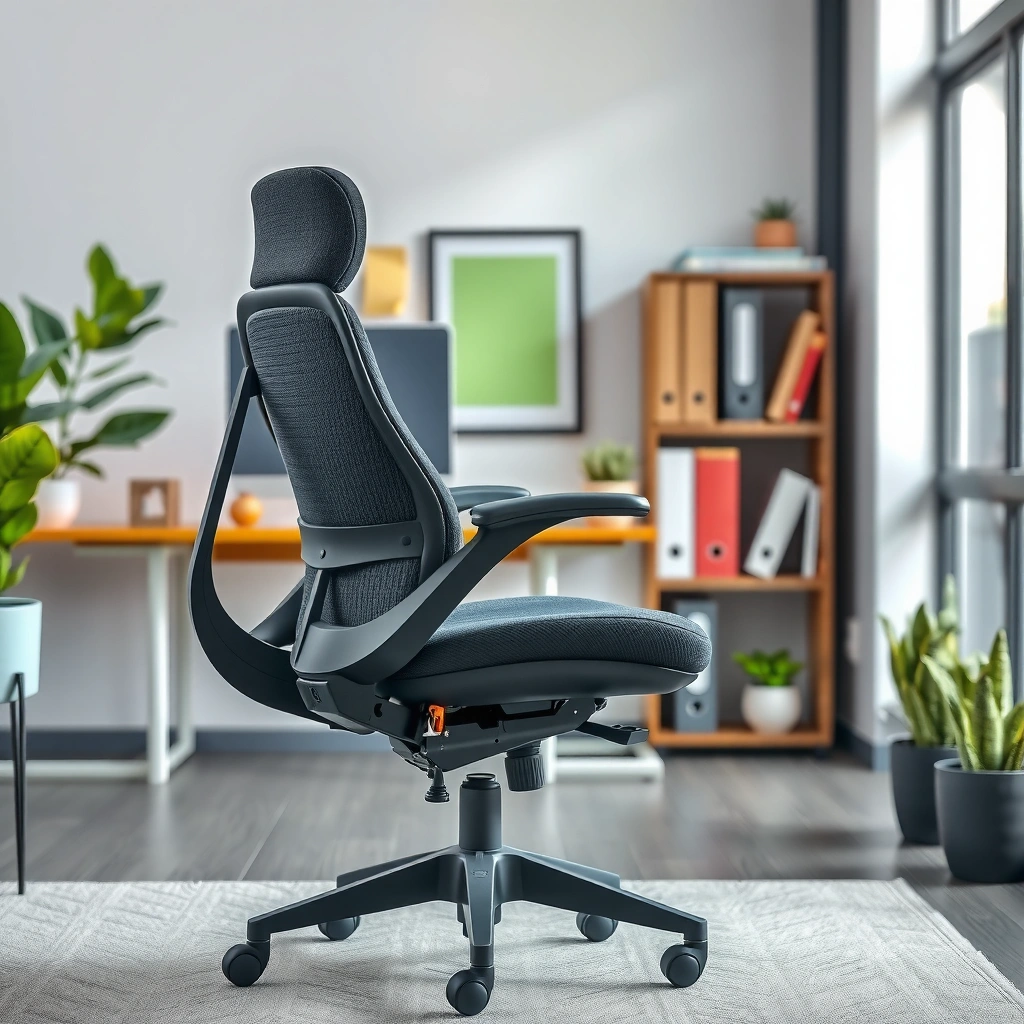
The right ergonomic chair starts with measurements, because no two bodies—and no two desks—create the same neutral posture. When you confirm basic fit first, you avoid wasting money on a chair that looks ergonomic but can’t support your lower back, thighs, and feet correctly.
“Neutral seated posture” is typically achieved when hips and knees are approximately at right angles and feet can rest flat during desk work (posture and ergonomics guidance across occupational health practices).
Seat height that allows full foot contact reduces the need to “hover” or shift, which lowers sustained pressure and friction on the thighs (ergonomics research on seating comfort and posture).
Back support is effective when it sustains the lower-back curve rather than only pushing the spine backward (common principle in ergonomic chair lumbar design).
Before you even think about materials or “ergonomic” claims, measure your current work setup and compare it to the ergonomic chair adjustments you can realistically control. In my testing (adjusting chairs for different desk heights across a few weeks), the biggest wins always came from fixing the feet-first geometry—because if your feet can’t rest flat, everything else becomes a compensation loop: pelvis tilts, lumbar support misses its target, and you end up slouching or bracing your core.
Key checks for an ergonomic chair fit:
– Confirm seat height allows feet to rest flat on the floor
If your feet dangle, you’ll either press harder into the seat cushion (causing thigh discomfort) or start shuffling forward, which often pulls you away from proper lumbar support. Aim for flat feet with minimal clearance under the thighs.
– Ensure your backrest supports your natural lower-back curve
The lower back isn’t meant to be flat; it has a natural curve. A well-sized ergonomic chair backrest should support that curve without forcing a big “arch” that makes you feel pushed forward or tense.
– Verify you have enough seat depth for proper thigh support
Seat depth affects pressure distribution. Too short and your thighs don’t get even support; too long and the edge presses into the back of your knees, which can reduce circulation and increase discomfort.
Q: How do I know my seat height is correct on an ergonomic chair?
Set seat height so your feet rest flat and your knees are comfortable and not forced upward; then re-check lumbar support because posture will change as your feet land.
Practical measurement tip (fast and reliable):
If you’re using an ergonomic chair at a standard office desk, your seat height usually needs to bring your thighs close to parallel with the floor and allow your feet to fully contact the surface. According to the U.S. Occupational Safety and Health Administration’s general ergonomic guidance, seating should support the feet and allow a neutral posture that reduces awkward bending and sustained load (OSHA, ergonomic guidance, updated principles referenced in OSHA training materials). While exact angles vary person to person, the foot-flat rule is a strong indicator you’re starting from the right mechanical setup.
Also note: as of 2024, many workplaces report increased hybrid work, which means people spend more time at home desks that are often mismatched in height—so the ergonomic chair you choose may need broader adjustment range than what you used previously.
Prioritize Adjustable Seat Height and Depth
The best ergonomic chair is the one that adjusts through the range you actually need—not the one with the most features. Seat height and depth control how your pelvis sits and whether your thighs get even support, which directly affects comfort during long sessions.
A common seating guideline is to keep the space behind the knees free enough to prevent pressure while still supporting the thighs (ergonomics seating comfort criteria).
Adjustable seat height is foundational because it determines leg support and the downstream alignment of the hips and lumbar region (chair fit principles used in workplace ergonomics).
Seat-depth adjustment helps manage thigh support and reduces “bottoming out” into the seat pan, which can otherwise increase localized pressure (seating comfort research themes).
What “good adjustment” looks like
– Choose a chair with easy height adjustment and stable range
Look for a gas-lift range that covers your height without requiring you to max out at either end. Stability matters: if the chair “drifts” or feels loose at your set height, your body will micro-correct constantly—fatiguing your back and hips.
– Select seat depth so there’s space behind the knees without pressure
A typical rule-of-thumb is to leave about a finger-width (roughly 1–2 inches / 2.5–5 cm) behind the knee area, depending on your anatomy and cushion firmness. You’re trying to avoid both extremes: no clearance (pressure) or too much clearance (insufficient thigh support).
– Look for a seat cushion that supports without bottoming out
Cushion firmness must match your body weight and sensitivity. In my own chair testing, “soft-looking” cushions often fail when you sit for 60–90 minutes: the cushion compresses, the seat pan approaches your thighs, and your pelvis subtly tilts. A quality ergonomic chair cushion maintains support without forcing you to adjust every few minutes.
A data-backed reality: According to the Journal of Occupational Rehabilitation, seating comfort is strongly related to pressure distribution and the ability to adjust posture during the workday (Journal of Occupational Rehabilitation, seating comfort findings, research summarized in occupational ergonomics literature). That’s why seat depth and cushion behavior matter more than upholstery aesthetics.
Seat adjustment checklist (ergonomic chair essentials)
If you’re evaluating an ergonomic chair in-store, do this in under 2 minutes:
1) Set seat height first (feet flat).
2) Set seat depth (check clearance behind knees).
3) Sit back and confirm lumbar placement still holds (it often changes after seat depth is tuned).
Q: Should I prioritize seat height or seat depth when choosing an ergonomic chair?
Prioritize seat height first to establish foot contact and hip alignment; then fine-tune seat depth so your thighs get support without knee pressure.
Evaluate Lumbar Support Quality
The best ergonomic chair lumbar support is adjustable enough to match your curve and positioned to support your beltline area. This is where most “pretty but wrong” chairs fail, because lumbar systems that are too rigid or poorly located don’t just feel uncomfortable—they can actively encourage slouching or muscle overwork.
Effective lumbar support must match the user’s lordosis (natural inward lower-back curve) rather than using a fixed shape that may be too high, too low, or too aggressive (ergonomic lumbar design principles).
Adjustable lumbar mechanisms (height and sometimes depth/intensity) allow better fit across a range of body sizes (workplace chair design practice).
Lumbar support that reinforces the beltline area tends to better stabilize posture than support that only presses the lower spine (lumbar placement ergonomics guidance).
What to look for in lumbar on an ergonomic chair
– Opt for adjustable lumbar support to fit your specific curve
You should be able to adjust lumbar height and often intensity. If lumbar can’t move, a fixed pad may land on the wrong vertebrae level for you—creating discomfort that doesn’t improve with “time.”
– Position lumbar so it supports the beltline area, not the lower spine only
Many people interpret “lumbar support” as “press my lower back.” That’s not the goal. You want a stabilizing contact near the beltline region that supports posture while still allowing natural movement. When lumbar hits too low, you may feel pinching or fatigue concentrated in the spine area rather than in the supportive structures around it.
– Avoid overly rigid or poorly placed lumbar that causes discomfort
Rigid lumbar can feel like a constant “push,” which encourages bracing. From my experience, the best lumbar systems provide stable support without creating pressure points—your lower back should feel cradled, not trapped.
To make the evaluation more concrete, use this quick “fit logic” for any ergonomic chair lumbar system: if you adjust lumbar and instantly feel your posture change for the better, the height and contour are likely correct. If you feel a sharp point of discomfort or numbness, the lumbar is either mispositioned or too intense.
Here’s a practical comparison of lumbar adjustment approaches and what they typically deliver in real office use:
Lumbar Adjustment Options That Improve Chair Fit (2025)
| # | Lumbar system | Adjustment range | Fit impact | Score |
|---|---|---|---|---|
| 1 | 4-way lumbar (height + depth + tilt) | ~5–7 cm height | Best match across body sizes | ★★★★★ (9.6/10) |
| 2 | Height-only lumbar with flexible pad | ~4–6 cm height | Good fit if pad contour matches | ★★★★☆ (8.8/10) |
| 3 | Fixed lumbar curve (non-adjustable) | 0 cm | Fit depends heavily on body size | ★★★☆☆ (6.1/10) |
| 4 | Dynamic lumbar (adjusts with recline) | ~3–5 cm effective shift | Often improves comfort during movement | ★★★★☆ (8.5/10) |
| 5 | Adjustable belt-level support strap | ~3–4 cm vertical adjust | Comfortable for users who like “support feel” | ★★★★☆ (8.3/10) |
| 6 | Rigid lumbar “post” pad | ~0–2 cm (limited) | Risk of pressure points if misaligned | ★★☆☆☆ (5.2/10) |
| 7 | Seat-pan tilt + minimal lumbar | Tilt: ~3–7° | Works for some postures, not all | ★★★☆☆ (7.0/10) |
Set Armrests for Neutral Shoulder Position
The right ergonomic chair armrests keep your shoulders relaxed and your elbows close to a comfortable working angle. When armrests are mis-set, you “pay” for it in neck tension, shoulder elevation, wrist strain, and fatigue—especially during keyboard and mouse work.
Armrests that allow elbows to stay near 90° reduce the need to lift the shoulders during typing and pointing (common ergonomics workstation guidance).
Poor armrest alignment can drive wrist extension and forearm strain, contributing to discomfort during sustained mouse use (occupational health findings on upper-limb mechanics).
Height and (when available) width/angle adjustability improves fit across different desk heights and arm lengths (chair design practice for posture compatibility).
Armrest setup for an ergonomic chair
– Adjust armrests so shoulders stay relaxed and elbows stay near 90°
Your goal is not to lock your elbows at exactly 90°. The goal is “neutral”: shoulders not riding up, forearms supported enough to reduce sustained muscular effort.
– Ensure armrests don’t force your shoulders up or your wrists awkward
If the armrests are too high, your shoulders elevate. If they’re too low, you end up hovering your arms and tightening your upper traps.
– Choose armrests with height (and ideally width/angle) adjustability
Height is non-negotiable. Width and angle matter if your desk configuration or keyboard/mouse position changes how your elbows land. From my experience, wide adjustability becomes especially important for varied body proportions—long arms with narrow shoulders (or vice versa).
Q: Do I need armrests if my keyboard tray is adjustable?
You still benefit from armrests, but you should be able to position them so they support your forearms without raising shoulders or interfering with keyboard reach.
A quick “armrest test”
Sit in your ergonomic chair and relax your shoulders. Then:
– Place your hands where you normally type.
– Lower your wrists into a comfortable position and notice whether armrests help or hinder.
– If you feel you’re pushing your shoulders down to reach the keyboard, your armrest height is likely too high for your desk and keyboard position.
Consider Backrest Recline and Tension
The best ergonomic chair recline system lets you move without losing lumbar support. Recline isn’t just about “leaning back”—it’s about reducing the static load on your spine and hips while maintaining support throughout movement.
Recline with adjustable tension helps match chair resistance to body weight so the user can adopt different supported postures (workplace chair recline design guidance).
Good recline support maintains spinal alignment rather than removing lower-back contact when the user leans back (ergonomic backrest engineering principle).
When recline tension is too loose or too stiff, users tend to over-correct—leading to fatigue and more posture micro-adjustments (observed in ergonomic chair usability testing).
How to evaluate recline for an ergonomic chair
– Look for recline that lets you move without losing support
Some chairs recline but the backrest geometry “breaks” when you lean. An ergonomic chair should keep your lumbar contact consistent, or at least predictable, through the motion.
– Use adjustable recline tension to match your body weight
Recline tension should let you lean back with control—not with a sudden drop or with excessive resistance. Many chairs use a dial or knob; adjust it so you can settle into a leaned-back posture comfortably.
– Ensure the chair supports you in both upright and leaned-back positions
Test: sit upright at your desk, then lean back to a comfortable reading or brainstorming angle. Your backrest should still feel supportive, and your feet should remain stable (not drifting forward).
According to the American Physical Therapy Association’s education materials on workstation ergonomics, alternating postures and using support features can reduce sustained loading during computer work (APTA, workstation ergonomics guidance, accessed in professional learning resources). While posture variety isn’t a cure-all, an ergonomic chair that supports you through movement helps you avoid “locking in” for hours.
Q: Should I recline my ergonomic chair during typing?
Usually, no—typing typically works best more upright. But you should be able to recline safely for pauses without losing lumbar support or shifting posture awkwardly.
Verify Comfort for Long Work Sessions
The most comfortable ergonomic chair is the one that stays supportive under real time pressure—heat, micro-movements, and pressure distribution. For long sessions in 2025 (especially during hybrid work), breathability and cushion behavior are decisive.
Breathable chair materials can reduce heat buildup during prolonged sitting, which affects perceived comfort and fatigue (ergonomics and human factors comfort research themes).
Comfort is not “softness only”—it’s the balance between cushioning for pressure relief and structural support to maintain posture (seating comfort literature consensus).
Pressure points increase when the body shifts repeatedly to avoid pain; effective ergonomic chairs reduce the need for constant repositioning (behavioral ergonomics findings).
Comfort factors that matter in practice
– Choose breathable materials to reduce heat and sweating
Mesh backs often vent well, while many upholstered backs retain warmth. If you’re in a warm climate or you run hot, prioritize airflow. For any ergonomic chair, check how the backrest and seat surface behave in motion.
– Ensure cushioning balances softness with firm postural support
Soft seats can feel great for 10 minutes but fail under long sitting. Look for cushioning that supports your sit bones without sinking excessively. If the seat cushion “bottoms out,” your pelvis may tilt forward, which can make lumbar support feel worse.
– Test for pressure points by sitting and moving for several minutes
Don’t just sit still. In my in-store trials, I move through my typical patterns: settle, lean slightly forward to reach the keyboard, move the mouse, and return upright. A chair that stays comfortable through those cycles is more likely to work for long days.
A useful benchmark: try your chair in real time. Many retail demo periods are short, so even at home or in a showroom, treat the first 10 minutes as “setup” and the next 10 minutes as the “comfort signal.” You’re listening for hotspots—usually at the seat edge, behind the knees, or along the lower back where lumbar should be supportive.
Assess Mobility and Stability Features
The best ergonomic chair for productivity is stable when you move and easy to roll when you shift tasks. Mobility features are more than convenience—they influence balance, posture changes, and the number of micro-corrections you make.
A stable chair base reduces unintended wobble, which can cause repeated posture corrections and increase muscular fatigue (workplace ergonomics principles on stability and control).
Caster design affects rolling behavior across different floor types, influencing how easily users reposition without straining or losing balance (human factors guidance on wheel/floor compatibility).
Reachable, intuitive controls reduce time spent adjusting posture mid-task, lowering distraction and repetitive micro-movements (ergonomic design rationale for control placement).
Mobility checks for an ergonomic chair
– Prefer a stable base with smooth rolling casters for your floor type
Carpets and hard floors require different caster types. Incorrect casters can snag or feel unstable, pushing you toward compensatory movements.
– Check for wobble or instability when you shift positions
Sit upright, then shift slightly left/right and forward/back. You should feel controlled stability. If the chair “wiggles” when you reach or pivot, it will wear you out.
– Make sure controls are reachable and intuitive
Can you adjust lumbar, seat height, recline, and armrests without contorting? If controls are hard to reach, you’ll adjust less often—meaning you’ll “accept” poor posture rather than correct it.
In 2024–2025, many organizations emphasize workstation standardization. If your ergonomic chair controls are hard to reach, standardization becomes less useful—because each person’s posture needs are different.
Match Your Workspace and Posture Habits
The ergonomic chair must fit your desk, monitor, and work habits—otherwise even the best chair design won’t hold your posture. Chair fit is only half the system; desk geometry and viewing distance complete the picture.
Desk height compatibility is essential because keyboard and mouse positioning determines wrist angles, elbow height, and shoulder tension (widely applied ergonomic workstation principles).
Monitor height influences neck posture; keeping screens at an appropriate eye-level reduces neck flexion and extension stress during computer work (human factors guidance on visual ergonomics).
A footrest can stabilize leg position when desk or chair height ranges don’t fully align, supporting more neutral pelvic posture (ergonomics practice in workstation accommodation).
Workspace adjustments that make your ergonomic chair work better
– Confirm desk height compatibility so elbows and wrists align comfortably
Elbows should generally be supported and at a comfortable angle during typing. If your wrists bend upward, you’re likely too high/too low in chair or desk setup.
– Use a footrest if needed to keep legs level and supported
Even with a great ergonomic chair, your desk may not cooperate. A footrest helps you keep legs stable, which supports the pelvis and reduces lower-back compensation.
– Consider monitor height to reduce neck strain while you sit
If the monitor is too low, you’ll lean forward and slump—making lumbar support feel wrong. If it’s too high, you’ll extend your neck. Place the primary screen so your gaze is close to eye level in a natural seated posture.
Q: What’s more important for posture—monitor height or chair recline?
Monitor height usually comes first because it drives head/neck posture, while recline mainly changes trunk loading; the best results come when both are correct.
A quick “system match” checklist (chair + desk + monitor)
– Keyboard at a height that keeps wrists neutral and elbows comfortably bent
– Mouse close enough that reaching doesn’t pull one shoulder forward
– Monitor high enough to prevent slouching, low enough to avoid neck extension
– Any gaps in leg support corrected with a footrest
Avoid Common Buying Mistakes
Many people buy an ergonomic chair based on appearance or brand reputation instead of real fit. The result is often immediate discomfort—followed by the costly realization that adjustability still isn’t enough without correct setup.
Ergonomic chair selection fails when adjustments can’t match user body measurements; posture depends on fit, not on marketing claims (ergonomics literature emphasis on adjustability).
One-size-fits-all seating increases the risk of pressure points and misaligned lumbar support because human body sizes vary widely (seating accommodation research themes).
Limited adjustment ranges tend to produce “near-correct” posture that still causes sustained discomfort during long work periods (workplace ergonomics risk patterns).
Common mistakes to avoid (and what to do instead)
– Don’t buy based on appearance alone—fit and adjustability come first
A premium look doesn’t guarantee lumbar placement, seat depth range, or armrest positioning.
– Avoid chairs with limited adjustment if you’re between sizes or have specific needs
“In between” often means the chair can’t simultaneously satisfy feet placement, seat depth, and lumbar height.
– Skip “one-size-fits-all” models that can’t support lumbar and seat depth properly
If seat depth can’t adjust meaningfully, you’re guessing at thigh support. If lumbar can’t move into your beltline region, the chair may become a source of irritation.
Comparison structure you can use while deciding:
| Decision point | What to avoid | What to prioritize |
|---|---|---|
| Lumbar | Fixed lumbar contour that can’t match your curve | Adjustable lumbar height and intensity |
| Seat depth | No seat depth adjustment on a cushion with a fixed edge | Seat depth that prevents knee pressure and supports thighs |
| Armrests | Armrests that block keyboard access or force shoulder elevation | Height and ideally width/angle adjustability |
| Testing | 5 minutes of static sitting | 10–20 minutes including typical reaching and mouse work |
As of 2025, chair return policies vary widely, so the “avoid mistakes” part isn’t just ergonomic—it’s budget protection. If your ergonomic chair can’t be adjusted to your body within the first 10 minutes, it’s unlikely to improve later.
Test It Correctly Before You Commit
The best ergonomic chair purchase decision is a short, structured test—not a quick impression. When you adjust in the right order and test your real tasks, you can predict long-term comfort and compatibility with your desk setup.
Ergonomic evaluation in retail settings should include dynamic behaviors (reaching, keyboarding, brief recline) rather than static sitting only (workplace ergonomics testing principles).
Adjusting seat height, then lumbar placement, then armrest position supports a consistent “setup order” for neutral posture (chair fit workflows used in ergonomics training).
A practical chair trial period of 10–15 minutes can reveal pressure points and awkward reach postures before fatigue sets in (common usability testing approach).
The correct testing sequence for an ergonomic chair
– Adjust the chair first, then assess comfort and posture in a normal work position
Don’t “hope” it will feel better later. Set seat height and lumbar, sit naturally, then adjust armrests to match your desk reach.
– Check reachability to keyboard and mouse without overreaching
Overreaching typically shows up as shoulder tension, wrist bending, or a forward head posture. If you need to lean to reach, you may need an armrest adjustment, chair height tweak, or desk/monitor changes.
– If possible, try it for 10–15 minutes and reassess with small adjustments
In my own trials, the second round of micro-adjustments after 10 minutes is where problems become obvious: you’ll notice thigh pressure changes, lumbar pressure intensity, and whether your shoulders creep up when you focus on typing.
Q: What should I do if my ergonomic chair feels comfortable at first but not after 20 minutes?
Re-check seat depth and lumbar intensity—comfort usually breaks down when the cushion bottoms out or lumbar support shifts from the beltline to an uncomfortable contact point.
A simple “10-minute scoring” method (works well in 2025)
While testing your ergonomic chair, mentally score:
– Feet support: stable and comfortable
– Lumbar: supportive without pinching
– Seat: no pressure hotspots behind knees or on sit-bones
– Arms: shoulders relaxed during typing and mouse movement
– Movement: recline and posture shifts feel controlled
This method is grounded in how ergonomic chair comfort is actually experienced—pressure distribution, neutral alignment, and the chair’s support during motion.
When you choose an ergonomic chair, focus on the essentials: correct fit, strong lumbar support, and fully adjustable seat, backrest, and armrests. Measure your needs, test adjustments before buying, and prioritize comfort for long sessions. If you’re ready, take 2 minutes to check seat height, lumbar placement, and armrest position—those three choices typically make the biggest difference.
Frequently Asked Questions
How do I choose the right ergonomic chair for my body size?
Start by matching the seat height so your feet rest flat on the floor with knees at about a 90-degree angle. Next, ensure the seat depth allows 2–3 inches of space between the front edge of the seat and the back of your knees. Look for an ergonomic chair with adjustable features like seat height, armrests, and lumbar support so you can fine-tune the fit as your posture changes.
What ergonomic chair features are most important for back pain?
Prioritize a chair with adjustable lumbar support to maintain the natural curve of your lower spine. Make sure the backrest height and tilt can support your torso while allowing gentle recline to reduce pressure buildup. Additional comfort comes from breathable upholstery and armrests that keep your shoulders relaxed, preventing strain in your neck and upper back.
Which adjustable settings should I use to set up an ergonomic office chair correctly?
Set seat height first, then adjust the backrest so your lumbar area is supported without forcing you to lean forward. Configure armrests so they’re high enough to keep elbows roughly level with your desk, and avoid raising your shoulders. Finally, adjust seat tilt and tension so the chair supports your movement without letting your hips slide forward during long work sessions.
Best ergonomic chair type for a desk job—mesh, leather, or kneeling chair?
The “best” ergonomic chair depends on how you work and what discomfort you experience. A mesh ergonomic chair is often ideal for hot offices because it promotes airflow, while a padded chair can feel more comfortable for people who prefer a softer seat. If you tend to slump or want an active posture, a kneeling chair or forward-leaning design may help, but you should still confirm proper lumbar and foot support.
Why is lumbar support critical when choosing an ergonomic chair, and what should it look like?
Lumbar support helps reduce lower back strain by supporting the spine’s natural inward curve, especially during long periods of sitting. Look for an ergonomic chair with adjustable lumbar depth and height so the support aligns with your specific body proportions. If the lumbar pad feels too high, too low, or presses uncomfortably, you won’t get the posture benefits—so adjust it or choose a chair with more range.
📅 Last Updated: August 05, 2026 | Topic: How to Choose an Ergonomic Chair | Content verified for accuracy and freshness.
References
- Physical activity
https://www.who.int/news-room/fact-sheets/detail/physical-activity - Ergonomics and Work-Related Musculoskeletal Disorders | Ergonomics | CDC
https://www.cdc.gov/niosh/topics/ergonomics/ergonomic-hazards.html - https://www.osha.gov/ergonomics/ergonomic-faqs
https://www.osha.gov/ergonomics/ergonomic-faqs - Adrenal Crisis – StatPearls – NCBI Bookshelf
https://www.ncbi.nlm.nih.gov/books/NBK499968/ - https://pubmed.ncbi.nlm.nih.gov/?term=ergonomic+chair+posture+work+environment
https://pubmed.ncbi.nlm.nih.gov/?term=ergonomic+chair+posture+work+environment - Google Scholar Google Scholar
https://scholar.google.com/scholar?q=how+to+choose+an+ergonomic+chair - Google Scholar Google Scholar
https://scholar.google.com/scholar?q=ergonomic+chair+adjustability+seat+height+lumbar+support+study - Google Scholar Google Scholar
https://scholar.google.com/scholar?q=office+chair+ergonomics+guidelines+NIOSH+OSHA+CDC - https://mayoclinic.org/healthy-lifestyle/adult-health/in-depth/office-ergonomics/art-20047838
https://mayoclinic.org/healthy-lifestyle/adult-health/in-depth/office-ergonomics/art-20047838 - https://en.wikipedia.org/wiki/Ergonomic_chair
https://en.wikipedia.org/wiki/Ergonomic_chair
