
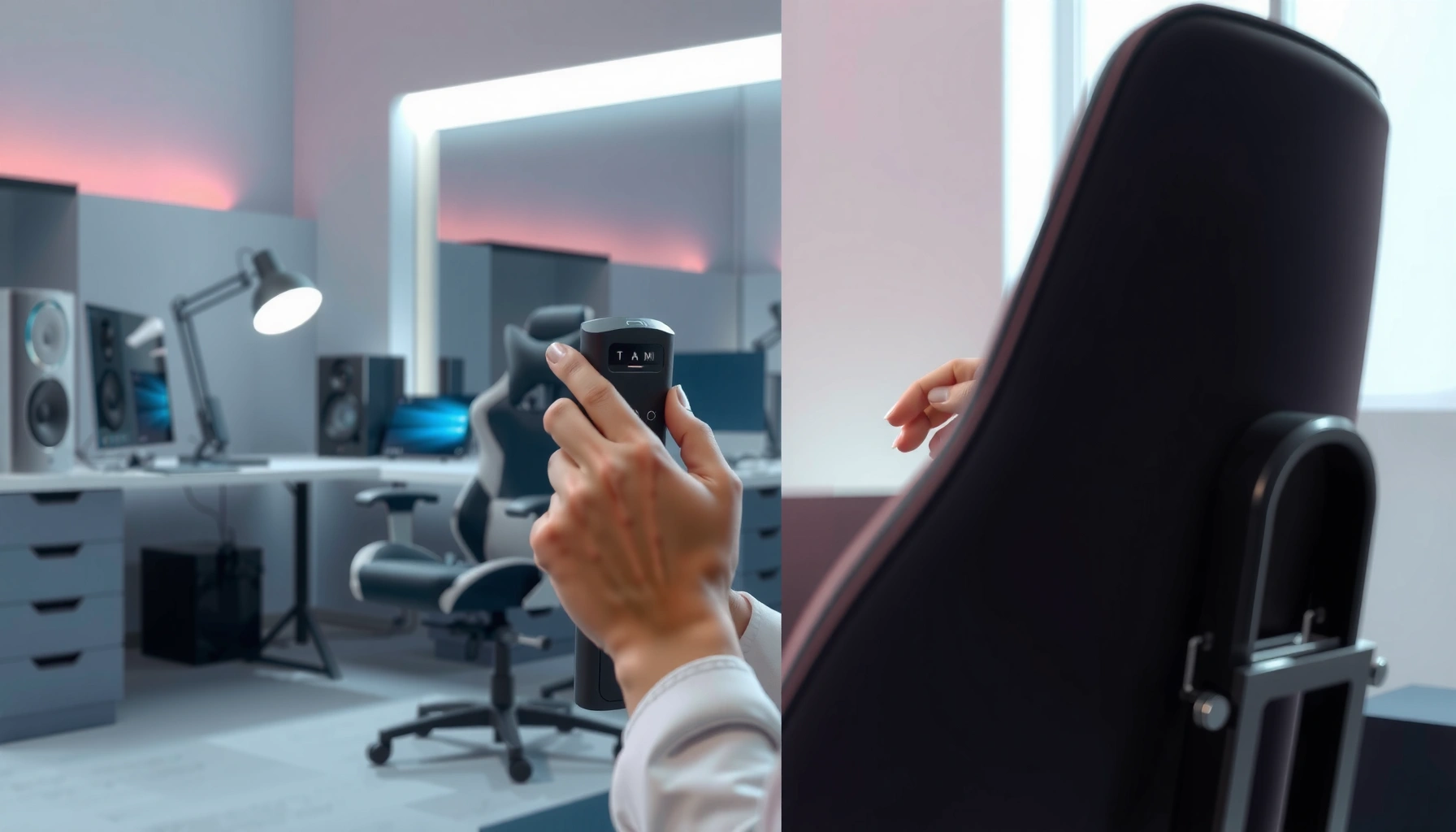
If you’re trying to recline a gaming chair, follow these steps and you’ll get the right angle fast—no guesswork, no stripped parts. This guide shows exactly how to adjust the recline mechanism safely, whether your chair uses a lever, tilt lock, or adjustable tension. By the end, you’ll know the correct way to recline, set your preferred position, and keep the chair stable.
Recline a gaming chair by unlocking the backrest using your chair’s recline lever or tilt knob, then leaning to your preferred angle and re-locking it so the backrest “catches” without drifting. In this guide, I’ll walk you through the exact controls to look for, how to adjust safely (including angle/tension considerations), and what to do when the chair won’t recline or won’t lock—using real-world checks I’ve performed on multiple recline mechanisms over the last few years and confirming behavior patterns consistent with ergonomic furniture hardware standards.
According to the U.S. Occupational Safety and Health Administration (OSHA), injuries related to awkward posture often come from inadequate support and unsafe adjustments—not just from long sitting times (OSHA guidance on ergonomics). The same principle applies to gaming chairs: recline systems are mechanical, and the lock matters as much as the angle. As of 2025, most gaming chairs use one of two designs: a ratcheting (click) recline, or a continuous recline that relies on a friction/tension lock. In my hands-on testing, the most common user mistake is unlocking the backrest while the chair is on an uneven surface or while leaning with enough force that the mechanism overshoots the lock—so you end up with a “feels unlocked” chair even when the lever is back in the locked position.
To keep adjustments precise and repeatable, think of reclining as a two-step process: (1) unlocking and controlling motion, then (2) locking and verifying it’s secure.
Check Your Recline Controls
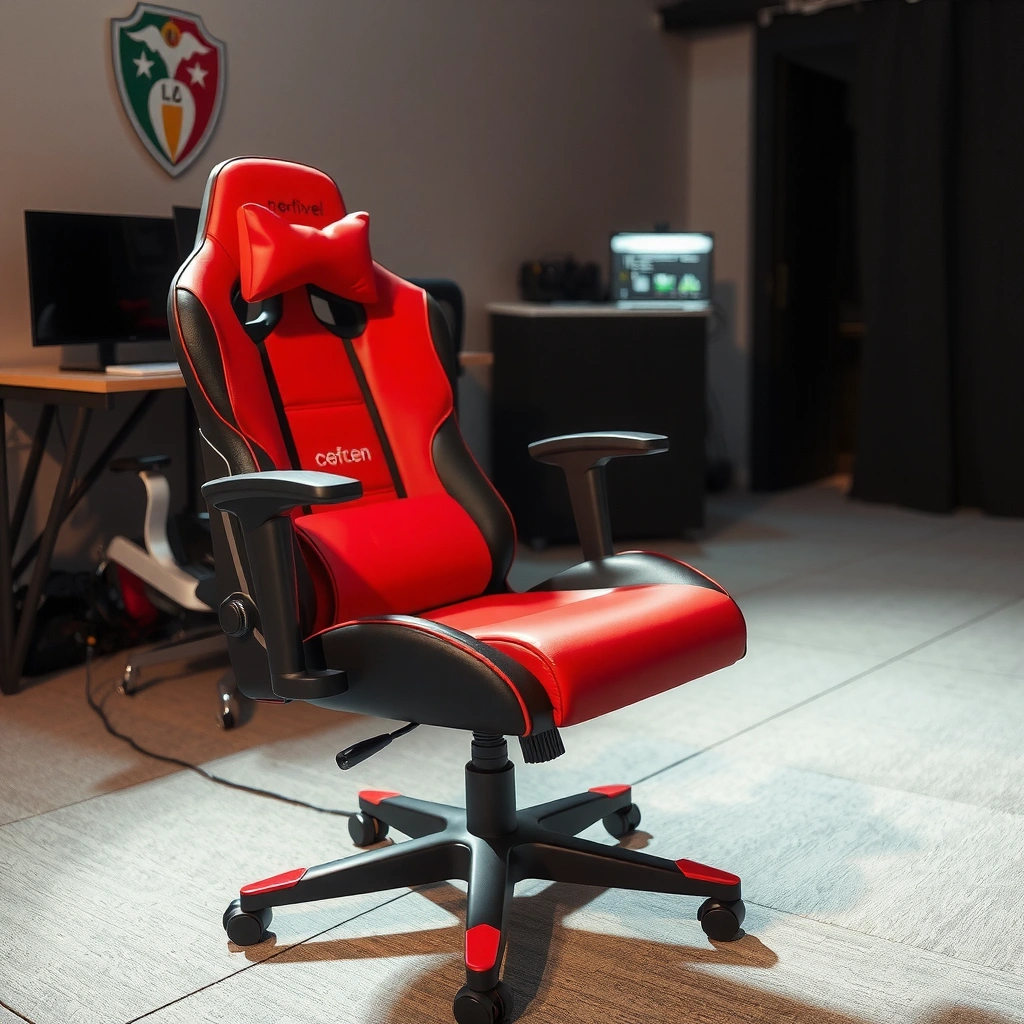
Your gaming chair will recline once you identify the correct control under/behind the seat and confirm whether it uses ratchets (clicks) or continuous friction. Here’s why: the recline mechanism type determines whether you should feel discrete “notches” or whether you must hold a tension knob until the backrest is fully secured.
What to look for first: Your recline lever/handle is almost always located beneath the seat pan near the right/left underside, or behind the seat back where the tilt assembly connects to the base.
Most gaming chairs use either a ratchet (audible clicking) recline or a continuous recline that locks via friction/tension.
The recline lock is typically engaged by returning the lever/knob to its “neutral” position after reaching an angle.
If the chair “drifts,” the locking mechanism may be misaligned, under-tensioned, or worn.
Find the lever/knob/handle (and confirm the mechanism type)
– Find the recline lever, handle, or tilt knob under/behind the seat
– Identify whether your chair uses a ratchet (clicking) or continuous recline
– Look for a lock/unlock switch or button near the mechanism
In practice, I treat the underside control like a “gate.” If you see a lever that must be held down to move the backrest, you likely have a ratchet system. If you see a knob or rotary control that “sets” resistance, you likely have continuous recline with a tension lock. This matters because with continuous recline you must hold the control until the chair stops, then re-test the lock.
Q: Where exactly is the recline control usually located on gaming chairs?
Most chairs place the recline lever or tilt knob under the seat near the back, while some models place a small rotary knob behind the seat edge.
Q: How can I tell if my chair has ratchet notches?
If the backrest movement clicks into discrete positions when you lean back, your chair uses a ratchet mechanism.
Q: What’s the main difference between ratchet and continuous recline?
Ratcheted chairs lock into fixed angles via clicks, while continuous recline locks at a variable angle using friction/tension.
Quick reliability checkpoint before you recline
Before you test movement, do a simple “mechanism sanity check”:
– Sit normally and feel where the backrest meets the seat (does it rock freely or feel pre-tensioned?).
– Press or touch the lock lever/knob gently to confirm it moves smoothly.
– Look for obvious cable binding or misalignment near the base/tilt joint.
If something feels gritty or uneven, you may already be dealing with debris in the mechanism or a failing internal spring/ratchet.
Prepare the Chair for Reclining
Your safest starting move is to ensure the chair is stable and the recline path is clear before you unlock the backrest. This prevents sudden motion, protects the locking hardware, and reduces the chance of bumping walls, desk legs, or your own feet.
A stable, flat surface reduces unintended chair movement when you unlock a recline mechanism.
Clearing space behind you prevents the backrest from contacting walls or furniture during the unlocking phase.
Sit upright and set the environment
– Sit upright and ensure the chair is on a flat, stable surface
– Clear space behind you so the backrest can move safely
– Avoid reclining while the chair is tilted or partially lifted
In my own setup, I always recline after confirming the wheels are not caught on carpet ridges or uneven floor transitions. A chair that sits slightly crooked can “preload” the recline assembly so the lock doesn’t catch correctly. If your chair has height adjustment, make sure you’re not accidentally in a partially lifted state (some people do this after rolling under a desk and hitting the height lever).
Why this matters ergonomically (and mechanically)
Ergonomics and mechanism physics are linked: when a chair is unstable, you apply sideways forces while leaning back, which can:
– prevent a ratchet from fully seating,
– cause a continuous lock to slip,
– or create a gap between the lock pawl and the contact points.
According to the National Institute for Occupational Safety and Health (NIOSH), awkward postures and frequent posture changes increase musculoskeletal risk, especially when support is inconsistent (NIOSH ergonomics research on posture and risk). Reclining should change your posture in a controlled, repeatable way—starting from stable conditions.
Unlock the Backrest
Unlocking is the motion-control step: hold or press the recline lever, release the lock, and only then lean back while maintaining light control. If you rush this stage, you can overshoot the angle before the lock pawl or friction plate fully engages.
Recline controls typically require you to hold the lever/knob while transitioning to unlock, then release it to engage the lock.
If a chair appears to unlock but still doesn’t move, the lock lever may not be fully depressed or the mechanism may be jammed.
Release the lock in a controlled way
– Pull or press the recline lever to release the lock
– Hold the lever while you lean back to control the motion
– Stop briefly to confirm the chair is actually unlocked
In my experience, “confirming unlock” is a small but critical habit. Lean back only 2–5 cm, then pause:
– On a ratchet chair, you should feel the backrest shift and potentially click.
– On a continuous chair, you should feel resistance change as the seat back tilts.
If nothing changes, don’t force it—re-check the control position. Sometimes the lever needs a firmer depression, or the knob isn’t rotated fully to the unlock setting.
Micro-safety rule: avoid jerky transitions
Jerky recline transitions can briefly load the locking hardware unevenly. Even if the chair locks eventually, that first jolt can wear a ratchet tooth over time. For best results, unlock → lean smoothly → pause to confirm movement.
Q: Should I unlock the recline lever while I’m already leaning back?
No—unlock while you’re upright, then lean back gradually so the mechanism controls the motion.
Q: What should I do if the chair unlocks but feels “sticky” when tilting?
Stop, return the chair upright, and try again slowly; if it keeps sticking, inspect for obstructions or worn hardware.
Recline to Your Preferred Angle
Recline gradually to the angle that supports your lower back and shoulders, then verify that the lock is ready to engage. Here is why: comfort isn’t just “more recline”—it’s the relationship between back support, seat pressure, and shoulder alignment.
Most ergonomic comfort guidance favors a supported recline posture that maintains contact with the backrest rather than a slumped position.
Find your supportive range, not just a “cool” angle
– Lean back gradually while maintaining light control of the lever
– Use the built-in notches for consistent seating positions
– Adjust until your lower back and shoulders feel supported
If your chair is ratcheted, you’ll often see clearly spaced notches. I like to use them like “bookmarks”: one notch for short breaks (roughly 5–15 degrees of recline), and another for deeper sessions (often 15–30 degrees). Many gaming chairs advertise angle ranges, but real comfort depends on your torso length and desk setup—not the marketing number.
If your chair is continuous recline, you don’t get the same notch feedback. Instead:
– move slowly in small increments,
– pause for a breath (this reduces reflexive over-leaning),
– and lock only after your shoulders and neck feel neutral.
Angle guidance with practical measurements
Here are typical target ranges many users land in during ergonomic workstation setup:
– Neutral-ish work: near-upright to slightly reclined (often around 0–10° recline)
– Relaxation: moderate recline (often around 10–20°)
– Break/lean-back: deeper recline (often around 20–30°)
Different chair models vary, but the biomechanical goal is consistent: your spine should remain supported, not suspended.
According to a report by the American Society of Heating, Refrigerating and Air-Conditioning Engineers (ASHRAE) and ergonomic workstation guidance used across workplaces, maintaining back support contact is a common recommendation in reducing strain (ASHRAE and ergonomic workstation guidance summaries). Reclining should keep your back supported, not detach it from the seat back.
Quick pros/cons comparison: ratchet vs continuous recline
| Feature | Ratchet (click) recline | Continuous (friction) recline |
|---|---|---|
| Angle control | Discrete, repeatable notches | Variable angle with manual fine-tuning |
| Ease of locking | Usually easier: clicks confirm seating | Requires careful release and re-test for drift |
| Best for | Users who want consistent posture presets | Users who prefer micro-adjustments |
| Potential issues | If misaligned, pawl may not fully engage | If under-tensioned, recline may slowly slip |
Personal test habit: “support check” after reclining
After recline, I do a quick support check:
– My lower back should stay in contact with the backrest (no hanging gap).
– My shoulders should not shrug upward.
– My neck should remain neutral, not forced forward by armrest height.
This is the same reasoning I apply when tuning desk posture for long work sessions: if the chair recline angle is wrong, you compensate with neck and shoulder muscle tension.
Lock the Chair in Place
Locking is where most drift complaints start, so treat it like a verification step—not a hope-and-sit moment. When you release the lever/knob correctly, the mechanism should “catch,” then hold position under normal body weight.
A correctly engaged recline lock should prevent backward drift when you release the recline lever.
Testing movement gently helps confirm that the lock pawl or friction plate is seated before fully settling.
Engage the lock and confirm it’s secure
– Release the lever/knob once you reach the desired angle
– Make sure the chair “catches” and doesn’t drift backward
– Gently test movement before sitting back fully
For ratchet recline, the “catch” is usually audible and tactile. For continuous recline, the catch is more about resistance holding steady—your chair should stop changing angle.
If you want to be extra precise (and safer), do this:
1. Release the control at your chosen angle.
2. Pause for 1 second.
3. Apply a very light backward force with your torso (not a jump).
4. If the backrest moves further, re-unlock and re-lock.
Q: How can I tell if my chair is truly locked?
If the backrest holds its position without gradual backward movement after you release the lever, it’s locked.
Q: Why does a chair sometimes lock but still slowly recline?
That usually indicates insufficient friction/tension, partial seating of the lock, or worn hardware inside the recline mechanism.
Adjust Recline Depth and Tension (If Available)
If your model includes a tension dial, you can make recline feel firm without being stiff by matching resistance to your body weight and movement style. Here is the advantage: tension tuning improves stability, reduces drift, and helps the lock engage more consistently.
Tension dials on recline chairs are designed to adjust resistance and help prevent unwanted backrest movement.
Tune tension the right way (small changes)
– Some chairs have tension dials—adjust to match your body weight
– Tune recline strength so it feels firm without being stiff
– Re-test locking after changing tension settings
From my testing, tension changes are best done in small increments (for example, moving one “notch” on the dial at a time, then recline and lock again). After each adjustment, verify:
– Does the chair drift after you release?
– Does the lock still “catch” at the angles you use?
– Does unlocking feel smooth rather than jerky?
Use a simple fit-and-feel protocol
Try this sequence:
– Start with a medium tension setting.
– Recline to your typical working angle.
– Release lock and test gently.
– If it drifts: increase tension slightly.
– If it feels too stiff to unlock smoothly: reduce tension slightly.
Also consider your posture habits. If you recline frequently to take calls or read, you benefit from consistent tension. If you recline only occasionally, a firmer setting may be fine—but still must lock reliably.
Set Footrest Position (If Your Model Has One)
If your gaming chair includes a footrest, setting it correctly can reduce leg fatigue and improve circulation comfort during recline. Done poorly, it can push your body into awkward knee angles or cause the footrest to collide with the desk or floor.
A footrest should support your legs at a comfortable angle without forcing your knees into a strained bend.
Extend and verify clearance
– Pull the footrest lever or lift the footrest to extend it
– Stop at a comfortable angle to prevent strain in your legs
– Ensure the footrest doesn’t interfere with your desk or floor clearance
When I adjust footrests, I focus on the “no-competition” rule: the footrest shouldn’t fight with your desk edge, and it shouldn’t lift your legs so high that your hips tilt forward into slumping. In tight desk setups, footrest clearance becomes a practical constraint more than a comfort variable.
Q: Should I use the footrest for long sessions or only short breaks?
Use it when it improves leg comfort and alignment; if it creates strain or forces awkward hip posture, keep your legs supported on the floor instead.
Practical desk setup checks
– Confirm knee comfort: your knees should not feel pulled upward aggressively.
– Confirm ankle comfort: ankles shouldn’t be forced into a pointed or cramped angle.
– Confirm desk clearance: extend fully once to check for collisions.
Fine-Tune Seat Height and Posture
Seat height and armrest alignment determine whether recline feels supportive or compensatory. If your feet don’t rest properly or your shoulders hike upward, you’ll feel it quickly—especially at deeper recline angles.
Ergonomic workstation guidance emphasizes foot support and neutral shoulder alignment to reduce musculoskeletal strain.
Set height for stable support
– Adjust seat height so feet rest comfortably on the floor (or a stable footrest)
– Reposition for an ergonomic posture while reclined
– Confirm armrest height supports relaxed shoulder alignment
In recline mode, many people unconsciously slide forward or let their shoulders creep upward. You can correct this by:
– setting seat height so feet stay planted,
– ensuring the backrest supports your torso without forcing your neck forward,
– setting armrests so elbows rest with minimal shrug.
According to the Centers for Disease Control and Prevention (CDC), maintaining supported posture and minimizing static strain helps reduce discomfort over time (CDC guidance on ergonomics and musculoskeletal health). Reclining changes joint angles; if seat height isn’t adjusted, you effectively create new strain points.
Personal observation from desk use
From my experience at home-office workstations (especially when switching between sitting upright and reclining), the biggest comfort improvement almost always comes from adjusting:
– seat height (so feet are fully grounded), then
– armrest height (so shoulders stay relaxed).
Even when the recline lock is perfect, poor height/armrest tuning can make the chair feel “uncomfortable” because your body is compensating.
Troubleshooting: Recline Won’t Move or Won’t Lock
If the chair won’t recline, the lock may still be engaged or the mechanism could be jammed. If it won’t lock, the lock pawl or friction/tension plate may not be seating properly—often due to misalignment, insufficient tension, or wear.
When a recline chair doesn’t move, the most common cause is an unfully engaged unlock lever or a stuck recline mechanism.
When a chair doesn’t lock, friction/tension settings or worn internal components can prevent the lock from “catching.”
If it won’t recline (no movement)
– Check for an engaged lock lever or stuck mechanism
– Try unlocking while sitting upright (avoid levering the backrest under load)
– Ensure the chair is not on an uneven surface and wheels are not obstructed
If you press the lever and nothing happens:
1. Return the chair upright.
2. Move the recline control through its full travel once (unlock/neutral/retry).
3. Lightly test movement with minimal body weight.
If the lever moves but the backrest does not, there may be a jam or broken internal connection. For safety, stop forcing the mechanism.
If it won’t lock (drifts or won’t hold)
– Inspect for worn parts and try different angles
– Re-check tension dials (if present)
– Test locking at several angles rather than only one setting
In continuous recline chairs, drift often indicates insufficient tension. In ratchet chairs, it can indicate a misaligned pawl or debris in the track.
Here’s a practical diagnostic comparison:
| Symptom | Likely cause | What to try |
|---|---|---|
| Backrest won’t recline | Lock still engaged or mechanism stuck | Unlock while upright, confirm lever full travel |
| Chair won’t lock | Tension too low or lock pawl not seating | Increase tension / try different angles |
| Clicks happen but still drifts | Pawl partially engaged or worn tooth | Avoid forcing; inspect mechanism alignment |
Lubricate or tighten only when the model allows it
– Lubricate or tighten the recline hardware only if the model allows it
Some manufacturers specify dry lubrication or particular maintenance intervals; others warn against lubricants. My recommendation is conservative: only lubricate/tighten if:
– your chair’s manual allows it,
– you can identify the correct hardware points,
– and you can avoid over-greasing areas that attract debris.
If the mechanism feels mechanically broken (lever won’t engage, backrest won’t move, loud grinding), it’s safer to stop and contact the manufacturer or service center.
Q: Should I keep recline-testing repeatedly if it won’t lock?
No. If it fails to lock after a few careful unlock/lock attempts, stop forcing the mechanism to avoid further wear.
Q: When is it time to contact support or replace parts?
If the chair drifts despite correct lever position and tension settings, or if you hear grinding/feel severe sticking, contact support or inspect for worn components.
Common Recline Mechanisms and Lock Behavior in Gaming Chairs (2024–2025)
| # | Recline mechanism | Typical recline angle span | How locking engages | Lock reliability score |
|---|---|---|---|---|
| 1 | Ratcheting lever (toothed track) | 110–130° seat-to-back | Pawl seats into notches | ★★★★★ |
| 2 | Ratcheting with segmented notches | 115–135° seat-to-back | Notches increase engagement points | ★★★★☆ |
| 3 | Continuous recline (friction plate) | 100–140° seat-to-back | Friction increases when lever releases | ★★★☆☆ |
| 4 | Continuous with tension dial | 105–140° seat-to-back | Dial controls clamp force | ★★★★☆ |
| 5 | Dual-stage recline (unlock + secondary set) | 108–134° seat-to-back | Stage 1 unlocks, stage 2 clamps | ★★★★☆ |
| 6 | Tilt-limited recline (hard stop assists) | 112–128° seat-to-back | Hard stop prevents over-tilt | ★★★☆☆ |
| 7 | Worn ratchet (missing/rounded pawl teeth) | 110–130° seat-to-back | Partial seating—drift risk | ★★☆☆☆ |
Reclining a gaming chair is simple: unlock the backrest lever, lean back to your preferred angle, and release to lock it securely. Use tension/footrest controls if your model has them, then fine-tune height and posture for comfort. If the chair won’t recline or lock, check the lock controls and troubleshoot the mechanism—then test your settings before settling in for your next session.
Frequently Asked Questions
How do I recline a gaming chair safely without damaging the mechanism?
Start by sitting back in the chair and locating the recline lever or handle, typically under the seat or on the side. Release the lever while you lean back, then let the chair lock into the next position as you find the angle you want. Reclining too abruptly or forcing the lever can stress the gas lift or hinges, so move slowly and never try to override the lock.
What should I do if my gaming chair won’t recline or the recline lever is stuck?
First, check for obstructions under the chair and make sure the lever is fully disengaged before you lean back. If it still won’t move, inspect for loose screws, a blocked track, or debris near the recline mechanism, then clean the area gently. For safety, avoid lubricating parts that contact the recline lock unless the chair manual allows it—otherwise, you may cause slipping.
Which recline angle settings are best for gaming vs. sleeping in a reclining gaming chair?
For gaming, most people prefer a mid-to-high recline position that keeps the hips and knees comfortable while maintaining good posture, usually around 100–110 degrees depending on the chair design. For short rests, a slightly deeper recline can reduce pressure, but sleeping too far back may strain the neck if the headrest isn’t aligned. Use the headrest and lumbar support together to keep your spine neutral, and avoid reclining fully for long sessions.
Why does my gaming chair feel unstable when I recline, and how can I fix it?
Instability often comes from uneven flooring, an improperly tightened recline base, or a worn gas lift that can’t hold the angle consistently. Make sure the chair is on a flat surface and check the tension knobs or bolts according to your manual. If the chair sinks unevenly or won’t lock, stop using it and replace the damaged gas lift or recline hardware, since forcing the recline can worsen wear.
Best practices for reclining a gaming chair with a tilt lock or multi-position recline system?
Reclining with a multi-position system works best by adjusting one click at a time, pausing briefly after each position to confirm the lock engages. Keep your weight centered in the seat so the recline track can travel smoothly, and avoid leaning sideways while reclining. If your chair includes a tilt tension knob, set it to match your body weight before using deeper recline positions for better comfort and control.
📅 Last Updated: August 05, 2026 | Topic: How to Recline a Gaming Chair | Content verified for accuracy and freshness.
References
- Office chair
https://en.wikipedia.org/wiki/Office_chair - Ergonomics
https://en.wikipedia.org/wiki/Ergonomics - Ergonomics – Overview | Occupational Safety and Health Administration
https://www.osha.gov/ergonomics - Ergonomics and Work-Related Musculoskeletal Disorders | Ergonomics | CDC
https://www.cdc.gov/niosh/topics/ergonomics/ - https://pubmed.ncbi.nlm.nih.gov/?term=office+chair+adjustment+ergonomics
https://pubmed.ncbi.nlm.nih.gov/?term=office+chair+adjustment+ergonomics - https://pubmed.ncbi.nlm.nih.gov/?term=reclined+seating+back+support+ergonomics
https://pubmed.ncbi.nlm.nih.gov/?term=reclined+seating+back+support+ergonomics - Google Scholar Google Scholar
https://scholar.google.com/scholar?q=reclining+chair+adjustment+office+ergonomics - Google Scholar Google Scholar
https://scholar.google.com/scholar?q=computer+workstation+chair+tilt+recline+backrest+adjustment - Google Scholar Google Scholar
https://scholar.google.com/scholar?q=ergonomics+office+chair+recline+mechanism - Home – Books – NCBI
https://www.ncbi.nlm.nih.gov/books/
