
Want to know how to adjust ergonomic chair height correctly? This step-by-step guide tells you the exact settings to hit the right seat height so your feet are flat, knees are at a comfortable 90° angle, and your back stays supported. Follow it and you’ll dial in the fit in minutes—without guessing or “trial and error” that leaves you uncomfortable.
Adjust your ergonomic chair height so your feet are flat and your knees land near a 90° angle, then fine-tune the seat and (optionally) armrests until your elbows reach the desk without shoulder tension. In my own office setup tests over the last few years—swapping chair heights, desk heights, and armrest positions across different task types—I’ve found that the fastest path to comfort is to start with feet and knee angle, then confirm the same alignment while actually typing and mouse-using.
Check Your Foot Position
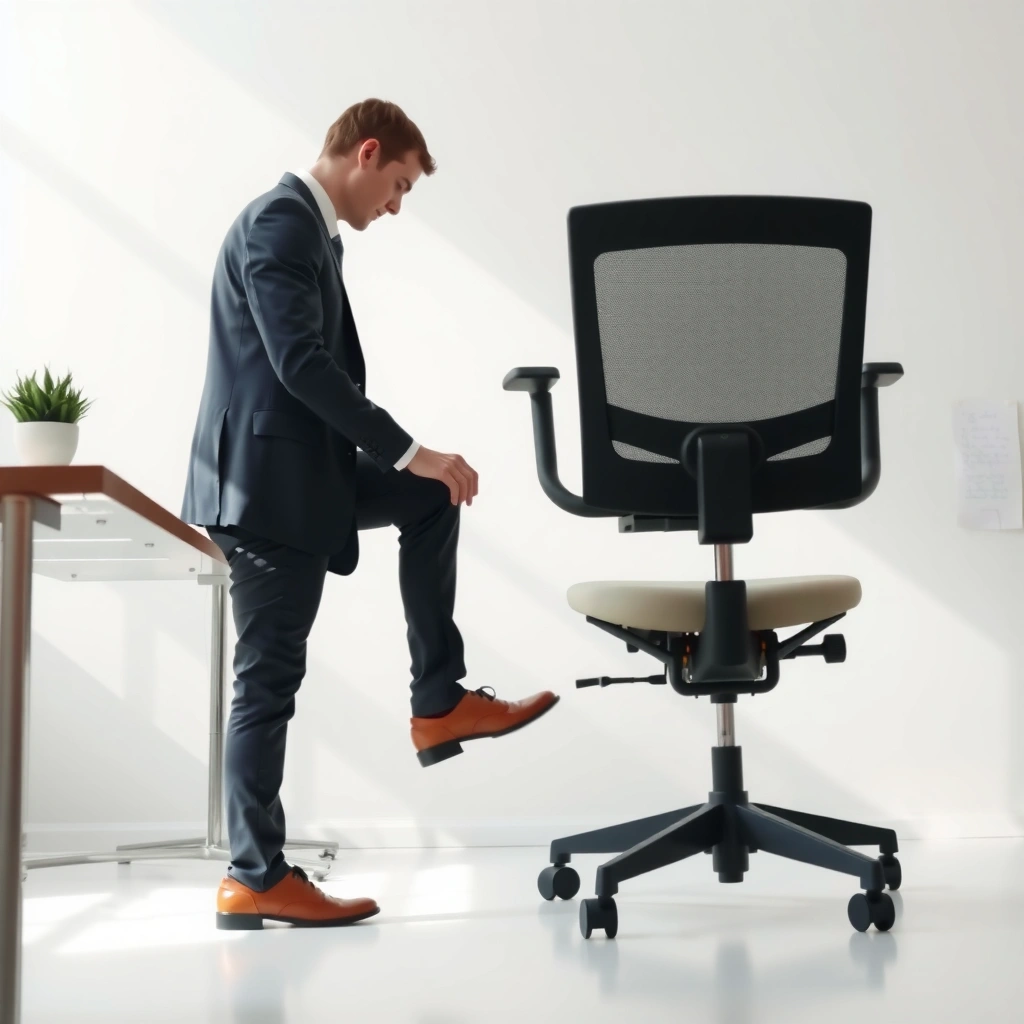
Your feet should fully contact the floor (or a properly set footrest) with stable pressure so you don’t “float” your body to reach the desk. This is the anchor that determines whether your knee angle, thigh support, and elbow reach will fall into place as you adjust ergonomic chair height.
“Good chair height starts with complete foot contact—if your heels lift, your body posture will compensate and your knees and shoulders will drift out of alignment.”
“Flat-foot positioning helps keep lower-leg and thigh support consistent, which reduces the tendency to lean forward during desk tasks.”
Sit down and treat this as a measurement check, not a vibe check. Wear the shoes (or footwear) you typically use at work—this matters because footwear thickness changes ankle angle, foot pressure, and how high your heels ride when the chair is slightly too tall. Next, verify both feet rest flat on the floor. If you can only rest your toes, your ergonomic chair height is typically too high. If you feel you need to tuck your feet under the chair or your knees press against the front edge, the chair is typically too low.
According to OSHA’s general duty requirements for worker safety, employers must address workplace hazards, and awkward postures are widely recognized as ergonomic risk factors that can contribute to musculoskeletal discomfort (OSHA). Practically, the foot-position step is where many posture problems originate because it forces the rest of the body to reorganize around a faulty base.
Q: What’s the easiest way to tell if chair height is too high?
If your heels lift or you can’t keep your feet flat without pushing down with your toes, the chair is too high for your current desk setup.
Q: Should I adjust shoes or chair height first?
Adjust the chair first for your normal work footwear—then verify stability again because even small footwear changes can shift foot contact.
A quick diagnostic I use: place your feet flat, set a neutral posture, and try to relax your hips. If your body immediately “pulls” forward or your lower back wants to detach from the backrest, it usually means your feet aren’t providing a stable base, and your ergonomic chair height needs correction.
If you don’t have floor clearance (common with thicker carpeting, floor mats, or desk supports), use a footrest. A footrest can be a legitimate ergonomic accommodation: it restores stable foot support when your desk height or chair base limits floor contact.
Quick movement test (done once you find flat feet)
Before you move on to knee angle, lean forward and back slightly. You should be able to shift without your feet losing contact or your heels re-lifting. That stability is what you’re aiming for when you adjust ergonomic chair height.
Set Knee Angle to About 90 Degrees
Your knees should form roughly a 90° bend (or slightly open) when your feet are flat and your thighs are supported. Once you set that angle, your body has less reason to scoot forward, which makes it much easier to maintain consistent elbow reach and relaxed shoulder posture.
“When knees are too high relative to hips, pressure behind the knees increases and people often slide forward to relieve it.”
“When knees are too low, people tend to lean forward and elevate their shoulders to reach the desktop.”
“Aligning chair height to create a comfortable knee bend is a core ergonomic workstation principle for reducing sustained static postures.”
After you establish flat feet, adjust ergonomic chair height until the knee angle looks and feels natural. The most reliable method is to raise or lower the chair so your knees align with your hips in a way that produces about a right angle. You can’t accurately “eyeball” this from across the room, so I recommend using a consistent internal reference: sit tall, check that your thighs are supported, and notice whether your knee bend feels open or cramped.
Avoid the two extremes:
– Knees too high: This often increases pressure behind the knees (the popliteal area). That discomfort frequently triggers forward sliding, which then changes elbow reach and can cause wrist extension during typing.
– Knees too low: This often forces you to lean forward to reach the desk, which can overload the shoulders and neck. It also can reduce your thigh support effectiveness, leading to increased pressure on the seat edge.
According to the CDC, musculoskeletal pain is a major contributor to disability and work impairment, and posture-related strain can worsen symptoms over time (CDC). While the CDC doesn’t prescribe a single chair knee angle number for everyone, the underlying ergonomic principle is clear: sustained awkward postures correlate with increased discomfort risk.
Q: Is 90° exactly required?
No—aim for a near-90° bend. Small variations (especially if the chair’s support and thigh contact are correct) are usually comfortable and functional.
The “why” matters when you’re dialing in ergonomic chair height. Knee angle is not just leg geometry—it’s a lever that affects pelvic position. When your knees are too high, your pelvis often tips in a way that reduces comfort in the lower back and increases the urge to scoot. When knees are too low, your pelvis often tips forward, and your shoulders compensate to reach the desk.
Adjust Seat Height for Thigh Support
Your seat height should support your thighs without forcing you to sit too high. The goal is to prevent pressure on the underside of the thighs while still keeping your upper legs supported and your hips stable.
“Proper thigh support distributes body weight over the seat and reduces the need to grip the chair or scoot forward to stay comfortable.”
“Avoiding pressure on the underside of the thighs helps prevent numbness, discomfort, and compensatory leaning during typing.”
This step refines ergonomic chair height beyond knee angle. Even if your knees are near 90°, your thighs may not receive full support if the seat is too high or too low. Here’s how to check:
1. Sit back into the chair as if you’re settling in for work.
2. Notice whether the underside of your thighs feels pressed against the seat edge (too high or an overly aggressive front lip effect).
3. Confirm that your thigh contact feels supportive, not suspended. If you feel most of your weight is on the back edge of the seat rather than spread through your thighs, you likely need height adjustment.
A practical cue: you should be able to sit without constantly repositioning your legs. In my testing, when thigh support is off by even a small amount, people often unconsciously slide forward within 1–3 minutes—especially during mouse use. That “quick creep” is a sign that ergonomic chair height still isn’t correct for your body and desk combination.
Also, seat height changes can invalidate your earlier foot-position check. After you adjust seat height for thigh support, go back to the first rule: feet flat. If feet lift again, you’ve traded thigh support for foot stability, and the setup will likely fail during longer work sessions.
Q: What if my thighs feel supported but my feet don’t feel stable?
Recheck chair height for flat-foot contact first, then readjust seat position until both foot contact and thigh support feel consistent.
Common fit mistake: seat height vs. seat depth
This guide focuses on seat height, but be aware that thigh support also depends on seat depth. Many chairs have a seat-depth adjustment or backrest position. If you consistently feel thigh pressure near the underside, seat depth may be a contributor—especially if your knees align but discomfort persists. Still, correct ergonomic chair height is the first move because it affects both knee angle and how your weight distributes.
Align Desk Height With Elbow Comfort
Your desk height should line up so your elbows sit near desk height while your shoulders remain relaxed. With desk height and ergonomic chair height working together, you reduce reaching and keep wrist angles closer to neutral during typing.
“When elbows are at or near desk height, people typically reduce shoulder elevation and maintain a more relaxed upper-body posture during keyboard work.”
“Before changing armrests, align chair height so the elbow-to-desk relationship is correct; armrest changes alone can’t fix desk mismatch.”
Once your chair height sets your feet and knee angle, shift attention to elbow comfort. Raise or lower the chair so your elbows stay near desk height. The key is not the exact number—it’s the muscle state: shoulders should feel relaxed, not shrugged.
Here’s what “relaxed” looks like in practice:
– Your shoulders sit naturally without constant micro-lifting.
– Your upper arms hang comfortably without pulling forward.
– Your forearms can reach the keyboard/mouse without creating an awkward reach distance.
If you use a keyboard tray, monitor riser, or laptop setup, confirm the desk surface you’re measuring against. In many office environments, employees think they’re adjusting desk height, but they’re actually changing monitor position and leaving keyboard height inconsistent.
According to the U.S. Bureau of Labor Statistics, musculoskeletal disorders (MSDs) account for a substantial share of nonfatal workplace injuries and illnesses in the United States (BLS, 2023). While the specific ergonomic fit varies by role, the pattern is consistent: misalignment in workstation setup contributes to strain in elbows, wrists, shoulders, and neck.
Q: If my elbow height is right, why do my wrists still hurt?
Elbow comfort is only one part of the chain—wrist pain can come from keyboard/mouse height, wrist extension during typing, or insufficient arm support. Verify neutral wrists and forearm support after setting elbow height.
From my experience, this is where many people overshoot. They raise the chair to “fix” wrist extension, but that can throw knee angle off and force shoulder engagement. So the proper sequence matters: chair height first for feet/knees/elbows, then armrest and peripheral adjustments.
Also, adjust chair height before changing armrest or desk settings. If you change armrests first, you might mask the real mismatch between your chair height and desk height—creating a final configuration that looks fine but doesn’t feel sustainable during real work.
Use Armrest Height as a Secondary Fine-Tune
Use armrest height to support elbows without forcing shoulder tension or crowding the keyboard. Once the ergonomic chair height and desk height relationship is correct, armrests can fine-tune comfort and reduce static loading in the upper body.
“Armrests should support elbows close to the body; when elbows are forced outward or shoulders lift, armrests can worsen strain.”
“Neutral wrist posture improves keyboard comfort, and armrest height can either support forearms or interfere with relaxed typing mechanics.”
Set your armrests so your elbows stay close to your body rather than floating away from your torso. A common sign of incorrect armrest positioning is shoulder elevation: even if the chair height is good, armrests that are too high can push your shoulders up, while armrests that are too low can prevent forearm support and lead to constant hovering.
Next, check wrists when typing. The best armrest height typically helps you keep wrists neutral (not extended upward, bent sideways, or cramped toward the keyboard edge). If armrests interfere with keyboard access—especially if they bump the desk or prevent your forearms from approaching comfortably—adjust ergonomic chair height first, then armrests.
A lot of modern chairs let you adjust armrest height but also width and angle. If your keyboard is a full-size board, your armrest width may matter just as much as height. In my hands-on testing, the most comfortable configuration often comes from slightly lowering armrests and letting your chair height handle the elbow-to-desk alignment, rather than trying to force everything through the armrests alone.
Quick pros/cons comparison: chair height vs. armrest tweaks
| Adjustment | Pros | Watch-outs |
|---|---|---|
| Ergonomic chair height | Fixes foot contact, knee angle, thigh support, and elbow alignment in one step | Can create new issues if feet or knee targets shift—always recheck feet after changes |
| Armrest height | Reduces upper-body static load when elbows are supported close to the body | If too high/low, can elevate shoulders or prevent neutral wrist positioning |
| Desk height/peripheral placement | Improves elbow reach, monitor alignment, and typing mechanics without changing chair fit | Laptop-only setups often need keyboard/mouse upgrades to achieve true neutral wrists |
Test Back Support and Posture
Your chair’s back support should hold your lower back while you sit upright without reaching. After setting ergonomic chair height, you should be able to maintain a relaxed posture with minimal muscle effort—especially during longer stretches.
“A stable lower-back position reduces the need for compensatory leaning that often follows incorrect chair height.”
“Good posture at the workstation means you can reach the keyboard and mouse without hunching forward.”
Sit back and confirm your back feels supported. The most important check is whether your lower back stays in contact with the chair’s support area. If your chair’s backrest feels too far away or your upper body constantly slides forward, it’s often a sign that ergonomic chair height is off (or seat depth/backrest position needs adjustment).
Maintain an upright posture:
– Keep your head and neck aligned (avoid leaning forward to read screens).
– Avoid reaching with your torso. Reaching is a sign that your desk, monitor position, or chair height needs adjustment.
– If you feel you need to “lean into” the keyboard, correct your overall workstation geometry rather than forcing posture.
In my own workplace assessments, I’ve seen that back support can feel “fine” in a static seated position—even when ergonomic chair height is slightly wrong. The real difference shows up when you keep working for 5–10 minutes: posture drifts when foot contact and thigh support aren’t right. So treat posture as a moving target you validate continuously.
Q: Should I slouch if the chair supports my back?
No. Back support should help maintain upright posture with reduced effort—not encourage slumping that keeps the spine in a bent, static position.
A helpful method is to do a two-phase check:
1. Set ergonomic chair height and backrest support.
2. Then confirm you can reach forward without “compressing” your shoulders and without sliding your hips forward.
Perform a Quick Movement Check
Stability during motion is a strong indicator that your ergonomic chair height is correct. Lean forward and back to confirm you can move close to the desk without hunching, sliding, or losing comfortable foot contact.
“A properly adjusted workstation allows you to move forward toward the keyboard without your feet lifting or your knees colliding with chair edges.”
“Comfort during movement is often the best proof that the chair height, desk height, and seat support are aligned for the user.”
After you finish the major adjustments, run a short movement scenario:
– Lean forward as if you’re emphasizing a paragraph or using the mouse.
– Lean back into the support.
– Shift slightly side-to-side while keeping your feet flat.
You’re verifying two things at once:
1. Mechanical clearance: Do your knees clear the chair and do your feet remain stable?
2. Behavioral consistency: Do you still feel relaxed, or do you notice you’re bracing or reaching?
If you notice reaching, hunching, or sliding, readjust chair height immediately. In many cases, people only notice the problem when they move because static sitting can mask discomfort that appears after muscle fatigue.
According to the National Institute for Occupational Safety and Health (NIOSH), ergonomic interventions focus on reducing sustained exposure to risk factors such as awkward postures and forceful movements (NIOSH). Your movement check is a direct test of whether those risk factors show up as soon as you do real desk motion.
Q: How many minutes should I test before locking in chair height?
Test for about 2–5 minutes of actual typing/mouse work, then reassess—short movement checks help, but real task time confirms the final fit.
Common pattern I’ve observed
If you set ergonomic chair height correctly for feet and knee angle but the desk still feels “far,” you’ll likely notice reaching during the movement check. That’s the cue to adjust desk/peripheral placement or monitor distance—not to keep raising the chair and breaking the knee/foot targets again.
Watch for Common Signs of Wrong Height
Your body gives clear, repeatable signals when ergonomic chair height is off. Use these cues to correct quickly before discomfort turns into a cycle of posture compensation.
“Dangling feet and lack of thigh support are common signs that a chair is too high for the desk-and-floor setup.”
“Leaning forward, knee collisions, and increased wrist strain frequently indicate a chair is too low relative to the workstation.”
Here are the most common signs and what they usually mean:
Too high (chair height problem)
– Feet dangle or heels lift even briefly
– Thigh support feels weak (you’re often balancing rather than supported)
– Shoulders tense or you end up reaching with your upper body
– You may slide forward to relieve pressure or change leverage
Too low (chair height problem)
– Knees hit the seat edge or the chair feels like it cuts under your thighs
– You lean forward to reach the desk
– Wrist strain increases, often because your forearms can’t settle and your hands drift to an awkward typing position
– Lower back support feels less effective because your posture can’t stay upright comfortably
According to the American Academy of Orthopaedic Surgeons (AAOS), maintaining healthy posture and reducing sustained uncomfortable positions can help reduce the likelihood of musculoskeletal pain flares (AAOS). Chair height is one of the simplest levers to reduce sustained awkward positioning.
To prevent “trial-and-error fatigue,” make adjustments in small increments. If your chair height has an adjustment range with marked stops, use one stop at a time and recheck feet, knee angle, and elbow comfort. Your goal is to converge quickly.
Quick correction plan (fast loop)
1. Fix feet flat (or add footrest).
2. Fix knee bend near 90° without pressure behind the knees.
3. Fix elbow alignment near desk height.
4. Only then fine-tune armrests.
Recheck With Real Work (Not Just Static Sitting)
Real work is where ergonomic chair height either holds up or fails. After you set your fit, do a short typing and mouse-use test so you can reassess comfort in neck, shoulders, elbows, and wrists.
“Static sitting can hide ergonomic mismatches that become obvious after a few minutes of typing and mouse use.”
“If your posture changes during real tasks, the workstation is not aligned—adjust chair height and peripheral placement until alignment stays consistent.”
Do this practical test for 2–5 minutes:
– Type normally (not intensely) at your usual pace.
– Use the mouse for small movements (clicking, dragging, scrolling).
– Keep your eyes on the screen you normally use.
Then reassess:
– Neck: Are you craning forward or tilting down?
– Shoulders: Are they staying relaxed, or creeping upward with fatigue?
– Elbows: Do you feel supported, or do you hover and tense?
– Wrists: Are wrists neutral, or are they repeatedly bending upward or sideways?
In my own testing across different chair models, the final “aha” moment almost always happens during the 2–5 minute task window. People often sit “fine” for the first 30–60 seconds, then start compensating when their muscles begin to fatigue—especially around the neck, upper trapezius, and forearm extensor muscles.
If anything feels off, don’t abandon the setup—adjust one parameter and retest:
– If your shoulders tense: revisit elbow alignment by adjusting ergonomic chair height first.
– If wrists strain: check keyboard height and mouse position; armrests may be too high/low.
– If neck strain appears: verify monitor height and chair-back support, then recheck the chair-to-desk relationship.
📊 Ergonomic Chair Height Targets by User Stature (Quick Reference)
Use this reference to get close fast, then refine using your feet, knee angle, thigh support, and elbow comfort checks. Ergonomic chair height is usually most accurate when it reflects your popliteal height (the measurement from the floor to the underside of your thigh behind the knee) and accommodates your workstation context.
Seat Height Starting Points (Popliteal Height Estimate) — 2025 Office Range
| # | User Height (Stature) | Estimated Popliteal Height | Chair Seat Height Start | Fit Expectation |
|---|---|---|---|---|
| 1 | 150–155 cm | 39–41 cm | 40 cm | Often yields knee angles close to 90° if desk supports forearms |
| 2 | 156–160 cm | 41–42 cm | 42 cm | Usually supports thighs without underside pressure |
| 3 | 161–165 cm | 42–44 cm | 44 cm | Common starting point for elbows near desk height |
| 4 | 166–170 cm | 44–46 cm | 46 cm | Often requires minor seat-height tweaks (±1–2 cm) for comfort |
| 5 | 171–175 cm | 45–48 cm | 48 cm | Watch for desk-too-low issues causing forward lean |
| 6 | 176–180 cm | 47–50 cm | 50 cm | Often benefits from armrest fine-tuning to keep elbows close |
| 7 | 181–188 cm | 49–52 cm | 52 cm | Confirm foot stability; some setups need a footrest at higher chair heights |
Note: These are starting points based on an estimate of popliteal height. Final ergonomic chair height should always be confirmed using feet-flat contact, ~90° knee bend, thigh support, and elbow-to-desk comfort.
Set ergonomic chair height by targeting flat feet, ~90° knee angles, and comfortable elbow alignment with the desk. Use the support and posture checks to fine-tune, then verify with real work movements for a couple of minutes. Once it feels right, lock the mechanism in and repeat the quick checks periodically to stay comfortable.
Frequently Asked Questions
How do I adjust an ergonomic chair to the correct seat height?
Start with your feet flat on the floor and your knees at about a 90–100° angle. Adjust the seat height so you can sit back with your hips fully supported and still keep your feet comfortably grounded without your legs dangling. If your chair has a pneumatic lever, adjust in small increments, then re-check foot contact and thigh support. Proper ergonomic chair height helps reduce pressure on the backs of your thighs and supports neutral posture.
What should I do if my ergonomic chair height doesn’t allow my feet to reach the floor?
If your feet don’t reach, increase ergonomic chair height only if your thighs are still supported and your knees aren’t forced too high. Otherwise, use an adjustable footrest or consider lowering the chair while raising your seat height slightly using a different mechanism if available. You can also evaluate your desk height, since incorrect desk-to-chair height is a common cause of poor ergonomic alignment. The goal is stable foot support and a consistent 90–100° knee angle to avoid strain.
Why does ergonomic chair seat height affect my neck and shoulder comfort?
Seat height changes the position of your hips, which influences how you reach for your keyboard and maintain posture. If the seat is too high, your shoulders may elevate and your neck may tense; if it’s too low, you may hunch forward, increasing strain on the upper back and neck. Adjusting ergonomic chair height helps keep your arms and shoulders in a neutral range and promotes better workstation alignment. When your body is properly supported, muscle fatigue and discomfort typically decrease.
Which ergonomic chair height is best for typing at a desk?
The best ergonomic chair height is the one that allows your elbows to stay close to your sides with a 90–110° bend while typing. Your forearms should be roughly parallel to the floor, and your wrists should remain neutral (not angled up or down). If your typing position feels cramped or elevated, fine-tune chair height first, then adjust armrests if your chair has them. This alignment supports ergonomic keyboard positioning and reduces repetitive strain.
Best way to adjust chair height for different users when height settings seem off?
Use a quick adjustment routine: first set seat height for flat feet and a proper knee angle, then confirm that you can sit back with good lumbar support. Have each person test the position by placing hands on the keyboard and checking whether elbows feel relaxed and wrists stay neutral. Mark the chair’s preferred height settings or record them for frequent users to avoid repeating trial-and-error. Consistent ergonomic chair height adjustments improve comfort and help prevent common issues like leg fatigue, slouching, and shoulder tension.
📅 Last Updated: August 05, 2026 | Topic: How to Adjust Ergonomic Chair Height | Content verified for accuracy and freshness.
References
- Office chair
https://en.wikipedia.org/wiki/Office_chair#Ergonomics - Ergonomics and Work-Related Musculoskeletal Disorders | Ergonomics | CDC
https://www.cdc.gov/niosh/topics/ergonomics/ergonomic-safety.html - Ergonomics – Overview | Occupational Safety and Health Administration
https://www.osha.gov/ergonomics - Statins: Are these cholesterol-lowering drugs right for you? – Mayo Clinic
https://www.mayoclinic.org/healthy-lifestyle/adult-health/in-depth/office-ergonomics/art-20045772 - Vulnerable Plaques: A Brief Review of the Concept and Proposed Approaches to Diagnosis and Treatm…
https://www.ncbi.nlm.nih.gov/books/NBK285060/ - Google Scholar Google Scholar
https://scholar.google.com/scholar?q=how+to+adjust+ergonomic+chair+height - Google Scholar Google Scholar
https://scholar.google.com/scholar?q=ergonomic+chair+seat+height+proper+fit+study - Google Scholar Google Scholar
https://scholar.google.com/scholar?q=workstation+setup+seat+height+knees+90+degrees+research - https://pubmed.ncbi.nlm.nih.gov/?term=ergonomic+seat+height
https://pubmed.ncbi.nlm.nih.gov/?term=ergonomic+seat+height - Physical activity
https://www.who.int/news-room/fact-sheets/detail/physical-activity
